Frequently Asked Questions
Answers to the questions we hear most often. Every question links directly — copy the link on any answer to share it.
Pricing and Plans
Is the Launch plan a real product or just a limited demo?
It’s a real product. The Launch plan gives you up to 10 paying subscribers — plus up to 250 total subscribers (paying + free combined) — with the full premium feature set: token-based private RSS feeds, per-tier episode scheduling, subscriber management, deep links to podcast apps, the subscriber account dashboard, everything. No time limit. No “free trial” expiry. No hidden capability restrictions.
The only limits are subscriber counts. When you hit 10 paying subscribers, you’re ready for Starter.
What counts as a “paying subscriber”?
Only subscribers with an active token on a paid tier count toward your plan’s paying subscriber limit. Free-tier subscribers — anyone holding a token who isn’t paying you, whether they signed up on a free membership level or joined as a follower — do not count toward this limit. Subscribers in a free trial period count — they’re on a paid tier with an active token and a scheduled first payment.
Each plan also has a total subscriber cap covering all active tokens, paying and free combined (Free: 250, Starter: 500, Growth: 2,500, Pro and above: unlimited). Free-tier subscribers count toward this secondary cap but not the primary paying limit. The total cap exists to keep free-tier usage proportionate to the plan — a podcaster with hundreds of free marketing-list subscribers and a handful of paying ones is getting real value and should be on an appropriate plan.
Churned subscribers are removed from both counts immediately on cancellation. Both counts are based on currently active tokens, not your historical high watermark.
Anonymous listeners to your public feed have no token and don’t count toward either cap. Note that followers are not in that group — a follower has a token and a private feed URL, so they count toward the total cap the same as any other free-tier subscriber.
Do subscribers on a free trial count toward my plan limit?
Yes. Free trial subscribers are on a paid tier — they have an active feed token and a first payment scheduled at the end of the trial. They count toward your plan’s paying subscriber limit.
A genuinely free membership level (no payment required at any point) is different: free-tier subscribers don’t count toward the paying subscriber limit, but they do hold an active token and count toward the total token cap. Free trial ≠ free tier.
How does Benecaster know which of my subscribers are paying?
When you map your membership tiers in Benecaster → Settings → Subscription → Tier Mapping, Benecaster reads the price of each tier from your membership plugin and marks it paid or free accordingly. A daily background sync re-checks tier prices so that if you change a paid tier to free in your membership plugin, Benecaster reflects that within 24 hours.
This works automatically for all supported bridges — WooCommerce Subscriptions, MemberPress, Paid Memberships Pro, and Restrict Content Pro.
Subscribers you manually add to a paid tier (admin-comped access) count toward your paying subscriber limit the same as any other paid-tier subscriber. They also count toward the total token cap.
What happens when I outgrow the free tier?
At 8 subscribers — 80% of Launch’s limit — you’ll get a friendly heads-up with a one-click path to upgrade. At 10 you have hit the cap, and from subscriber 11 onward new subscribers receive your public feed instead of their private one. Your existing 10 keep their private feeds.
They are still being billed while that is true — paying for private access and receiving public episodes. That is the part worth acting on.
On the default preference, staying over for 24 continuous hours moves you to Starter monthly. Launch is the one plan where the money moves that day — there is no subscription to reprice, so one is created and the card you saved at signup is charged. If that card can’t be charged, nothing bad happens: no suspension and no charge, and you stay on Launch.
How Subscriber Limits Work → explains what counts toward the limit and what each enforcement setting does. Launch’s own three limits are on Launch Plan Subscriber Limits →.
What happens if I go over my subscriber limit on a paid plan?
At 80% of your cap you’ll get a heads-up in your dashboard — a milestone, not an alarm. Past the limit, subscribers who join after it receive your public feed instead of their private one, immediately. Everyone already under the limit is unaffected.
They are still being billed by your membership plugin while that is true. That is the reason to act, rather than the limit itself.
What resolves it is your upgrade preference. On the default — auto-upgrade — staying over for 24 continuous hours moves you to the next tier. On cap, nothing is scheduled and you upgrade when you choose. Either way you can upgrade yourself at any point and end it straight away.
The prorated difference is charged to your card on the day, covering the rest of your current period. Your renewal date doesn’t change. Moving off Launch differs only in the amount — there is no subscription to reprice, so one is created and the card you saved at signup is charged the full first invoice rather than a proration.
How Subscriber Limits Work → has both windows, both enforcement settings, and what your subscribers see in each case.
Can I choose what happens when I exceed my limit?
Yes. There are two limits — paying subscribers, and total tokens (paying plus free-tier subscribers combined) — and each carries its own enforcement preference. You set them during onboarding and can change either at any time in Settings → Account.
Each preference decides one thing: whether going over raises your plan automatically, or leaves the move to you.
The paying subscriber limit defaults to auto-upgrade; the token cap defaults to cap. If you set one deliberately, check the other — it does not follow along.
What your listeners experience differs by limit, and the difference is worth knowing before it happens: an over-limit paying subscriber is moved to your public feed, while an over-cap free subscriber has their feed switched off entirely.
How Subscriber Limits Work → covers what counts toward each limit, what each setting does, and how either situation resolves.
What do subscribers see if they join while I’m at my limit in cap mode?
They complete signup and their membership plugin subscription activates normally — they’re billed by your membership plugin as usual. Benecaster issues them a feed token, but the feed serves your public episode content rather than private subscriber content until you upgrade your plan.
Their RSS URL works in any podcast app. When you upgrade, their token automatically starts serving private content — no URL change, no action needed from them or you.
Important: in cap mode, your membership plugin bills those subscribers regardless of their feed access level. The admin warning in Benecaster makes this explicit. If you choose cap mode and reach your limit, check your subscriber list regularly — anyone shown with an amber indicator is receiving the public feed and has been billed for private access.
What does an automatic upgrade cost on an annual plan?
The prorated amount is charged to your card on the day the upgrade takes effect. It covers the rest of your current paid period. Your renewal date does not change — your next invoice falls on its normal date and carries the new plan’s full rate.
The amount is the difference between the two plans for the period remaining. For example: on annual Starter ($79/year), upgraded to Growth ($149/year) six months in, roughly half the difference — about $35 — covers your remaining six months. Your subscription then renews at the full Growth annual rate ($149) on your existing renewal date.
The upgrade email is a receipt: it names the amount charged, what period it covers, and when your next full renewal falls.
Can I downgrade my plan?
Yes — once you are within the lower tier’s limits for 30 continuous days, on every limit that tier sets rather than subscribers alone. The 30 days start when you come inside those limits, not when you ask. The clock never runs while you are over, and if you stop fitting within any limit, the clock clears and starts again the next time you are inside them all.
Benecaster notifies you when you’re eligible, and you make the change yourself from My Account → Change your plan. Downgrading to Launch works the same way — Launch is the lowest licensed plan and works like the others, just without a bill.
The change is scheduled rather than immediate. You keep the higher tier through the end of the period you have already paid for, and the smaller plan’s price takes over from that renewal.
If you grow past the smaller plan’s limits before that renewal, the downgrade does not go through. We recheck your eligibility every day while the change is pending, not only on the day you request it — and if you no longer fit, we cancel the scheduled change before it happens rather than letting it apply and undoing it afterwards. You stay on your current plan, nothing is charged, you keep every add-on, and we email you to explain which limit you are now over. Nothing is interrupted for your subscribers. You can ask for the downgrade again once you are back inside the limits for 30 continuous days.
The recheck looks at every limit the smaller plan sets, not just your paying subscriber count — that plan’s active-show limit and its total listener cap count too, and the listener cap includes your free-tier listeners. So it is possible to be held back by an audience that isn’t paying you, and the email names the specific limit and your own number against it so you are not left guessing.
Benecaster never downgrades you automatically, on any tier. An upgrade can be automatic because being over your limit means subscribers are not getting what they pay for. A downgrade is different: we cannot predict where your audience is heading or what your own marketing is about to do. We want you on the plan that gives you the best value, without either of us bouncing you between tiers — so the move is always yours to initiate.
How Subscriber Limits Work → has the per-plan limits you need to be inside.
Do I need separate shows for paid and free subscribers?
No. A single show in Benecaster can have any number of subscription tiers — paid, free, or both. Paid subscribers and free-tier listeners are different membership levels within the same show, each with their own episode availability windows and, if you choose, their own private feed. You only need a second show if you’re running a genuinely separate podcast with different content and a separate audience.
This is a common assumption from platforms where tiers feel like separate products. In Benecaster, tiers are a scheduling and access control layer within one podcast — not separate feeds that require separate shows. One show, multiple tiers.
Different audio per tier does not need a second show either. The usual case is an ad-free cut for paying subscribers and an ad-supported one for everybody else — two different files of the same episode. That is handled at the feed level: each tier’s feed can point at a different audio URL for the same episode, so you upload both cuts and map them, rather than maintaining two shows with two episode lists that have to be kept in step. See Swap the audio enclosure URL per subscriber tier at feed compile time.
Why does Benecaster serve the public feed for over-limit subscribers rather than blocking access?
A subscriber who hits a broken or blocked feed — however their podcast app handles it — is more likely to cancel than one who still has something working. Serving the public feed keeps over-limit subscribers in their app and on your show rather than encountering an error and moving on.
This is a default, not a rule. It is a per-show setting, so if you would rather an over-limit subscriber’s feed simply stopped serving than quietly delivered public episodes, you can turn it off. The same setting governs every subscriber-level access loss — a cancellation, a lapsed membership, an admin revoking access — so changing it changes all of them together, not just the over-limit case. The rest of this answer explains why it ships on.
By serving the public feed instead of blocking access entirely, over-limit subscribers still have a working feed in their app. When you upgrade your plan, every affected subscriber automatically gets their private feed restored — no URL change, no email to every subscriber, no action required from anyone.
The trade-off in cap mode is that your subscribers keep being billed during this window — they’re paying you for private access while receiving the public feed. This is true whichever membership setup you use. With a third-party plugin, Benecaster can’t intercept another plugin’s billing on your behalf; it owns its own payment processor and webhooks. With Benecaster’s built-in membership, billing continues too — by design. Over-limit works the same way everywhere rather than behaving one way on one setup and differently on another, so nothing about it changes if you switch membership systems later.
That’s why the admin warning is prominent and why auto-upgrade is the default: most podcasters want the situation resolved automatically rather than managing it manually. Upgrading your plan restores private access at the next validation, and the billing your subscribers were already paying simply starts delivering what they paid for again.
What’s the difference between Multi-Show and Studio?
Multi-Show supports up to 3 shows and unlimited subscribers. Studio supports unlimited shows and unlimited subscribers, includes all current and future podcaster add-ons, priority support, and Migration + Setup Service.
Choose Multi-Show if you’re running 2–3 shows and want to select your add-ons individually.
Choose Studio if you need more than 3 shows, want every add-on without managing purchases, or want the Migration + Setup Service included.
Support is included on every plan, so Studio isn’t buying you access to it — what Studio adds is priority: your questions go to the front of the queue when you do have one.
Is Migration Wizard included in my plan?
Growth, Pro, Multi-Show, and Studio all include Migration Wizard at no extra cost. For Launch and Starter, it’s available as a one-time add-on purchase ($79). Migration Wizard is a one-time-use tool — you pay once for the migration event, not annually.
If your plan includes it, there is nothing to buy — the entitlement is granted with the plan, and you’ll never be charged for it separately.
Do add-ons cost more on lower-tier plans?
No. Add-on pricing is the same regardless of which core plan you’re on. A Starter podcaster pays the same for the Analytics Dashboard add-on as a Pro podcaster. Your core plan governs subscriber count and show count, not which tools you can access.
Do I need a paid plan to use add-ons?
No — but you do need a benecaster.com account with a connected license. The Launch plan is $0 and is all you need to purchase and activate add-ons. The WordPress.org free plugin without a benecaster.com account cannot use add-ons — add-on entitlements are tied to your account and validated through your site’s connection to benecaster.com.
Installing the add-on files alone isn’t enough. Each add-on verifies its entitlement against your site’s license on every validation cycle, for the specific show it is being asked to run on — not once for the whole site. If your license doesn’t include that add-on, the functionality won’t activate — regardless of whether the plugin files are present. This means copying an add-on from another site and installing it on yours won’t work without a valid entitlement on your own account. You’ll see this in your admin, too: an add-on plugin present without a valid entitlement is listed in its own Installed — no license section on Settings → Add-ons, rather than disappearing or looking active.
If you’re already using the free plugin from WordPress.org and want to start using add-ons, sign up for a free Launch account at benecaster.com and connect your site. A card is collected at signup to enable one-click add-on purchases from your account dashboard — no charge until you buy something.
On a site running more than one show, “active” is answered per show rather than per site. A show is covered when the licence it is connected to includes the add-on and you have left it switched on for that show. So an add-on can be genuinely active on one show and not another on the same installation — either because you switched it off there, or because that show is connected to a different licence.
Can I share my Multi-Show or Studio license with another podcaster?
No. Multi-Show and Studio are multi-site licenses for your own shows — not to share with collaborators, friends, or colleagues. Every site activated under your license must be a podcast you own and operate.
If someone else wants to use Benecaster, they need their own license. The free tier supports up to 10 paying subscribers at no cost — it’s a real starting point, not a demo.
Activating Benecaster on a show you don’t own and operate violates the acceptable use terms. Benecaster may terminate all shows on your license if a violation is confirmed, including the shows that are legitimately yours. See Running Multiple Shows for more on how show management works.
Can I use the same add-on with more than one site?
Each add-on is tied to a specific Benecaster license and is available across all shows on that license — 1 show for Launch through Pro, up to 3 for Multi-Show, unlimited for Studio.
If you run two separate shows on two separate WordPress sites and want the same add-on on both, you have three options:
Multi-Show: Upgrade to Multi-Show — one license, one add-on purchase, up to 3 shows. One login, one bill, everything in one place.
Studio (unlimited shows): If you’re running more than three shows — or expect to — Studio gives you unlimited shows under a single license and a single add-on purchase. Designed for networks and agencies that have outgrown Multi-Show.
Two licenses on one account: Stay on two separate plans (e.g. Launch for each show) and purchase the add-on twice — once per license. Sign in to the account holding that license and buy from Your add-ons; a show is attached to a license when you connect the site, so each site needs to be connected with the account whose license it should use. This works well when the two shows are at very different stages and you want to manage them independently.
All three paths are supported. Multi-Show or Studio is the better fit as your operation grows.
Do I have to buy an add-on for every show, or just the ones I want it on?
You buy an add-on once, and it covers every show on that licence.
Add-ons attach to your licence, not to an individual show. Buy the Email Editor once and it is available on every show on that licence, including shows you add afterwards. There is no second purchase and no per-show charge.
There is nothing to enter to direct the purchase. The add-on lands on the licence you bought it on, and covers whatever shows are registered to that licence — then and later.
What that means on each plan:
- Launch through Pro — one show, so there is nothing to think about.
- Multi-Show — up to three shows, all covered by the single purchase.
- Studio — every current and future add-on is included on every show. Nothing to buy.
You choose which of those shows it appears on. Buying is licence-wide; switching on is per show.
Every entitled add-on card in Settings → Add-ons carries an Active on list with a switch for
each show, so you can run an add-on on two shows and leave it off on a third. That is a display
choice, not a billing one — you have already paid for all of them, and turning one off refunds
nothing and saves nothing. Turning it back on restores it, with whatever you set up inside it
intact.
Upgrading your plan widens what an add-on covers, at no extra cost. Add-on entitlements are not fixed to the show count you had when you bought them — they follow whatever your licence allows now. Buy the Email Editor on Pro, then move to Multi-Show, and it covers all three shows from the next licence check. There is nothing to re-purchase and nothing to re-enter.
Add-ons need an active plan behind them. The free WordPress.org plugin cannot use them; a free Launch account is the minimum.
Is there a free trial?
No free trial, but there’s a genuinely free tier (up to 10 paying subscribers, no time limit) and a 30-day money-back guarantee on all paid plans. A trial period isn’t long enough to set up, migrate subscribers, and evaluate real performance. The guarantee removes purchase risk without the complexity of managing trial accounts.
Do you offer agency or multi-site licensing?
Two different questions tend to arrive in the same sentence, so here are both answers.
Licensing: no. Agency licensing — where you hold a license and activate Benecaster on sites owned by your clients — is not available, and Multi-Show and Studio don’t cover client shows either. Every show under one license must be a podcast operation run by the license holder. Each client needs their own license, purchased by or for that client under their own benecaster.com account. Benecaster’s model is built around the podcast operator owning the subscriber relationship, and sub-licensing undermines that for both of you.
Building on it for a client: yes, and further than most plugins allow. Nothing about the licensing rule limits what you can build. Benecaster exposes over 270 hooks and filters, and its admin is extensible from your own companion plugin — you can add steps to the setup wizard, add settings pages and sections, add dashboard cards, and add tabs to the episode and show editors. A specialized setup for a client’s install is an ordinary plugin, and it stays yours. See Can I customize Benecaster for a client? for what that surface covers and where it stops.
One practical note on handover, because it surprises people. There is no license key to paste in — the plugin connects to benecaster.com through a browser sign-in, so activation happens under whichever account is signed in at that moment. Have your client create their account and buy the license first, then either do the connect step together or leave it as the one button they click at handover. That single step is what makes the license theirs, and it means you never need their password.
Purchasing under the client’s account is the point, not a formality: they own the license, the subscriber data, and the feed infrastructure independently of your engagement, which is also what protects you when the engagement ends.
Why are there no lifetime licenses?
Benecaster is ongoing infrastructure your subscribers depend on — feed delivery, token validation, license checks. Annual billing keeps the relationship honest: you renew because the tool is worth it, not because you’re locked in.
Do followers count against my token cap?
Yes. Each follower occupies one slot in your plan’s total token pool — the same pool shared with paying subscribers and free-tier members.
Benecaster tracks two separate limits:
Paying subscriber limit — the headline number on your plan (10 for Launch, 50 for Starter, etc.). Only paying subscribers count toward this limit. Followers and free-tier members do not.
Total token cap — all active tokens combined: paying subscribers, free-tier members, and followers. This secondary cap exists to keep the token pool proportionate to your plan.
Token caps by plan:
| Plan | Total token cap |
|---|---|
| WordPress.org (no account) | 100 followers |
| Launch (free account) | 250 |
| Starter | 500 |
| Growth | 2,500 |
| Pro, Multi-Show, Studio | Unlimited |
When you reach the WP.org follower cap (100), the [benecaster_follower_signup] shortcode silently stops rendering the form for visitors — listeners see nothing. Site administrators see a prompt explaining the cap and linking to a free Launch account at benecaster.com, which raises the cap to 250 at no cost. A card is required to create a Launch account — no charge is made at signup.
See How Subscriber Limits Work → for a full explanation of what counts toward each limit.
Getting Started
Will Benecaster put extra load on my WordPress server?
Some, yes — and it’s worth understanding before you choose a hosting plan. Here’s the honest picture:
Feed requests are cheaper than they look. Benecaster’s feed cache is per tier, not per subscriber. If you have 500 subscribers across 3 tiers, there are 3 cached RSS documents — not 500. A subscriber’s podcast app polling their private feed URL hits token validation (one database query), then the cache. With a warm cache, the entire request resolves in a handful of milliseconds and never touches the feed compilation logic. This is substantially lighter than a typical WordPress page load.
Object caching makes a big difference. If your host provides Redis or Memcached, the cache lives in memory rather than the database. At that point, feed requests at scale are close to negligible — token validation plus a memory read. Object caching is common on the better managed WordPress hosts, but it’s worth checking rather than assuming — some include it only on higher plans, some charge for it as an add-on, and budget “managed WordPress” plans often don’t offer it at all. Benecaster uses it automatically when it’s available and falls back to the database when it isn’t, so nothing breaks either way.
Feed request logging adds database rows. Benecaster writes one database row per feed poll — useful for tracking re-engagement from cancelled subscribers and feeding the Analytics Dashboard. This is on by default. At volume, the table grows fast: a 500-subscriber show generates roughly 24,000 rows per day. You can adjust the retention window, switch to logging only failed requests (revoked or unrecognized tokens — useful for churn diagnosis with minimal storage overhead), or disable logging entirely in Settings → GDPR / Privacy.
The download proxy is where load actually compounds. If you enable the optional download proxy for analytics, every time a subscriber downloads an episode, the request passes through WordPress before redirecting to your hosted audio file. For a show with frequent releases and a large active subscriber base, this can add up. The proxy is opt-in — if server load is a concern, you can get full feed analytics without it. See Download Tracking → for a full explanation of what the proxy does and when to enable it.
Hosting guidance by plan:
- Free and Starter (up to 50 subscribers): shared hosting is generally fine.
- Growth (up to 250 subscribers): a VPS or entry-level managed WordPress host (Kinsta, WP Engine, SiteGround) is worth the investment.
- Pro and above: managed WordPress hosting with Redis and PHP-FPM is the right baseline. Most hosts at this tier include Redis as standard.
Podcast app polling is not as aggressive as it sounds. Apps typically poll feeds when the user opens the app, not on a fixed interval. A subscriber who checks their app once a day generates one feed request per day. 500 subscribers does not mean 500 requests per hour.
How much disk space does Benecaster need?
Two things determine Benecaster’s disk footprint: the feed request log and the optional download proxy. Both have configurable retention. The core tables and analytics snapshots are negligible.
Core tables — a few megabytes:
Subscriber tokens, availability rules, email queue, sync logs, and similar tables add up to a few megabytes even at the Pro tier with hundreds of subscribers.
Analytics data — negligible:
Benecaster records subscriber lifecycle events (subscribe, cancel, tier change) and nightly per-tier snapshots from day one. Even a busy show with 1,000 subscribers generates less than 5MB of analytics data over five years — this is not a disk space concern.
Feed request log — the primary storage factor:
Benecaster logs every feed poll by default to power the Analytics Dashboard and churn diagnostics. At roughly 250 bytes per row:
- 500 subscribers: ~6 MB/day → ~180 MB at the 30-day default retention
- 1,000 subscribers: ~12 MB/day → ~360 MB at 30 days
- 5,000 subscribers: ~60 MB/day — a built-in hard cap at 5 million rows (~1.25 GB) triggers an automatic trim and admin warning before the table grows unchecked
The 30-day default is the right balance for most shows. If you extend retention to a year or more, budget several hundred megabytes to over a gigabyte at Growth scale and above.
“Failed only” mode logs only failed polls — revoked, not-found, or expired tokens — and skips valid requests. Volume drops by 90–99% at the cost of feed analytics in the Analytics Dashboard. Configure in Settings → Tools → Feed Request Log.
Download proxy log — secondary storage factor:
If you enable the optional download proxy for episode download tracking, every download generates a log row. Actual growth depends on subscriber count, episode frequency, and download behavior:
- 100 subscribers, 2 downloads/week: ~200 rows/week → ~1–2MB per year
- 1,000 subscribers, 4 downloads/week: ~4,000 rows/week → ~20–30MB per year
- 5,000 subscribers, 4 downloads/week: ~1M rows/year → ~100–150MB per year
For most shows the download proxy log is measured in megabytes. At large scale it’s worth monitoring, but it’s typically smaller than the feed request log for the same subscriber base.
Retention settings:
Both logs have independent retention controls under Settings → Tools. The feed request log defaults to 30 days; the download proxy log defaults to Forever. Shortening either window triggers a nightly cleanup job automatically. The “Prune now” button handles on-demand cleanup with a row-count and disk-space preview before you confirm.
Backups:
Benecaster’s scoped backup files (migration backups and manual backups) are stored in your WordPress uploads folder. These are listed in the Tools screen with their file sizes, and you can delete them once you no longer need them. Backups are never deleted automatically — a gentle reminder appears 30 days after each migration backup in case you’ve forgotten one.
For a full guide to managing disk usage — retention settings, disabling the proxy, removing the GeoIP database, and more — see Reducing Disk Usage →.
What do I need before I can use Benecaster?
A self-hosted WordPress site. Benecaster is a WordPress plugin — it doesn’t work with WordPress.com hosted sites or other platforms.
Audio hosting. Benecaster manages your RSS feed and subscriber access; it doesn’t store or serve audio files. You’ll need an existing podcast host (Buzzsprout, Libsyn, Transistor, Captivate, S3, etc.) or file storage that produces a stable URL per episode.
Hosting with room to grow. Benecaster is lightweight for most shows, but a few hosting choices make a meaningful difference:
- Object caching (Redis or Memcached) — strongly recommended for any show with active subscribers. Most managed WordPress hosts include it. Feed requests with a warm cache add minimal server load; without it, each request hits the database.
- A host that allows PHP-FPM — important at Growth tier and above where concurrent feed requests compound.
- Adequate disk space — minimal for most shows, but the optional download proxy generates log data that grows with subscriber count and episode frequency. See How much disk space does Benecaster need? →
Shared hosting works fine for Launch and Starter. A managed WordPress host (Kinsta, WP Engine, SiteGround) is worth the investment from Growth onward.
Can I install Benecaster on my existing WordPress site?
Yes — Benecaster is a standard WordPress plugin and installs on any self-hosted WordPress site running PHP 8.2+ and WordPress 6.4+.
What you may need to rework depends on how you’re currently managing podcast episodes:
If you’re using another podcast plugin (Seriously Simple Podcasting, PowerPress, etc.), those plugins manage episodes in their own format. Benecaster uses its own Episode post type — episodes need to be in Benecaster’s system to appear in Benecaster’s feeds. Benecaster’s setup wizard includes a one-time import step that reads your existing episodes and converts them automatically. You review the results, fill in any Benecaster-specific fields (like per-tier availability), and go.
Running both plugins at the same time works briefly as a transition buffer — your existing public listeners are unaffected and keep receiving episodes while you set up and test Benecaster. But it isn’t a permanent setup. Both plugins manage episodes separately, so any new episode you publish has to go into one system or the other, not both. The typical transition takes a few days: import, test, set up a feed URL redirect, then deactivate the old plugin. After that, Benecaster is the single place you create and manage episodes.
If your episodes are WordPress posts or pages with a player embedded — same situation. The importer handles the conversion. You’d also need to replace any podcast plugin shortcodes in your episode content with Benecaster equivalents; the importer flags these for you.
If you have no podcast management plugin — Benecaster installs cleanly. Create episodes from scratch and you’re set.
If you already have a membership plugin (MemberPress, WooCommerce Subscriptions, Paid Memberships Pro, or Restrict Content Pro) — that’s a head start. Benecaster connects to it rather than replacing it, so your existing members, billing setup, and subscription products stay exactly as they are.
Your existing hosting may also need attention. Benecaster’s feed delivery and caching requirements can differ from a standard WordPress content site — worth reviewing before you go live. See Server Requirements →
If you’d rather not handle the transition yourself, the Setup Service covers the full configuration including episode import.
Do I need to switch podcast hosts to use Benecaster?
No — with a few exceptions worth knowing about.
Benecaster gates the RSS feed, not the audio. Your audio files stay wherever they are. Benecaster generates an RSS feed pointing directly at your existing hosted audio URLs. No migration, no bandwidth cost to your WordPress server.
Platforms you’ll need to move off:
Spotify. Spotify creates two separate problems for private podcast setups:
-
Spotify for Podcasters as your audio host — If your audio is currently hosted through Spotify for Podcasters (formerly Anchor), moving to a private subscriber model requires switching audio hosts first. Spotify for Podcasters bundles hosting and distribution in a closed platform; the audio URLs it generates aren’t designed to be used independently in another feed.
-
Spotify as a distribution platform — Spotify only accepts open, public RSS feeds. Private subscriber feeds — Benecaster’s or anyone else’s — can’t be submitted to Spotify. Your public free episodes can still be listed on Spotify; your private subscriber content can’t. This is a Spotify platform decision, not a Benecaster limitation, but it’s worth knowing before you commit to a subscriber model.
Patreon. If your audio is currently hosted through Patreon, you’ll need to move it to a standard podcast host before switching to Benecaster. Patreon bundles audio hosting with its membership platform — the audio URLs it generates aren’t portable to an independent feed. Any major podcast host (Buzzsprout, Libsyn, Transistor, Captivate, Podbean, S3, etc.) works as a replacement.
A platform that works, but ties you to the subscription:
Castos. Castos-hosted audio sits at ordinary URLs, so a Benecaster feed can point straight at them and everything works normally — no migration needed to get started. The catch is that those URLs stop resolving when your Castos account closes. So you can run Benecaster alongside Castos indefinitely, but you can’t cancel Castos and keep the audio. If your goal is to leave Castos entirely, move your audio files to a host you control first and update the audio URLs on your episodes before you cancel. If you’re keeping Castos for hosting and only using Benecaster for private subscriber feeds, nothing needs to move at all.
Every other major podcast host works without changes.
How long does setup take?
For a podcaster who already has WordPress and a supported membership plugin, a straightforward setup — install the plugin, configure the bridge to your membership plugin, create your first episode — takes an hour or two. Setting up email templates, subscriber account pages, and tier mappings adds time but is not required to start.
Episode setup scales with your back catalog. If you’re switching from another podcast plugin, the setup wizard imports your existing episodes automatically. If you’re starting fresh or your episodes aren’t in a supported format, you’ll create them manually in Benecaster — plan for a meaningful time investment if you have a large archive. You don’t need to import everything before launch; most podcasters go live with recent episodes and backfill the rest over time.
If you’re migrating from Patreon or Supercast, the Migration Wizard automates the heavy lifting. A basic migration with a small subscriber list can be completed in an afternoon. A large migration with custom email sequences and a grace period takes longer to plan, not necessarily longer to run.
If you’d rather skip the technical setup entirely, the Setup Service covers all of it.
What if I don’t want to configure it myself?
The Setup Service is a personal, hands-on service where we configure everything on your WordPress installation — plugin install, membership plugin bridge, feed setup, email templates, subscriber account page. For migrations, it includes the full Patreon or Supercast CSV import, subscriber notification sequence, and post-migration monitoring.
Studio customers receive a Setup Service discount. See the Setup Service page → for tiers and pricing.
Can I run multiple shows?
Yes, on the right plan. Free through Pro each support a single show. Multi-Show supports up to 3 shows. Studio supports unlimited shows.
Where those shows live is up to you. Benecaster doesn’t charge by the WordPress installation, so a Multi-Show license can run its 3 shows together on one site, across 3 separate sites at 3 separate domains, or any mix — at the same price. You can connect as many installations as your plan allows shows, and no more. Staging copies don’t count.
Each subscriber’s token is show-specific — access to Show A doesn’t carry over to Show B. The admin UI includes a show switcher to navigate between shows on the same installation.
See Running Multiple Shows for configuration details.
Does Benecaster replace my membership plugin?
It depends on your situation.
Benecaster includes a built-in membership system — subscription tiers, Stripe billing, monthly and annual pricing, and failed payment handling. For most podcasters running a straightforward subscription model, that’s everything you need. No separate membership plugin required.
If you already use MemberPress, WooCommerce Subscriptions, Paid Memberships Pro, or Restrict Content Pro, Benecaster integrates with all four. Your membership plugin continues to handle billing and subscriber management, and Benecaster handles private feed generation, token management, per-tier episode scheduling, and subscriber access. This path makes sense if your existing plugin handles complex billing scenarios — custom discount logic, site memberships that bundle podcast access alongside other content, or integrations with other WordPress tools you depend on.
Both paths produce the same subscriber experience: a private RSS feed URL that works in any podcast app.
Does Benecaster replace my podcast host?
No. Benecaster doesn’t host audio files. It generates authenticated RSS feeds that point at audio URLs on your existing hosting provider. Your episode files stay at Buzzsprout, Libsyn, Transistor, S3, or wherever they are today.
Can I use WooCommerce product variations with Benecaster?
Yes, with one important constraint: all variations of a variable subscription product map to the same Benecaster tier. Benecaster maps tiers by the parent product, not the individual variation. A subscriber who buys the monthly variation and one who buys the annual variation are treated identically — they both get the tier assigned to the parent product.
This is the correct setup for the common use cases: offering monthly and annual billing options, or selling the same subscription in multiple currencies or regions. One parent product, one tier mapping, all variations covered automatically.
If you need different variations to unlock different access levels — for example a Basic plan and a Pro plan — those need to be separate subscription products, not variations of one product. Variations of the same parent product cannot map to different tiers.
How do I offer monthly and annual billing options for the same subscription tier?
Create a single variable subscription product in WooCommerce with two variations — one for monthly billing, one for annual. Then map the parent product to your Benecaster tier once in Benecaster → Settings → Subscription → Tier Mapping.
Because Benecaster maps by parent product ID, both billing variations grant the same feed access automatically. You don’t need to create separate products or separate tier mappings for different billing intervals.
How do I sell the same subscription tier in multiple currencies or regions?
Create a variable subscription product with one variation per currency or region (USD, GBP, EUR, etc.). Map the parent product to your Benecaster tier once in Benecaster → Settings → Subscription → Tier Mapping.
Benecaster ignores variation details — price, currency, and region make no difference to tier resolution. All variations of the same parent product map to the same tier automatically. No additional Benecaster configuration is needed per region.
The WooCommerce side is a different story. Multi-currency support requires a compatible currency switcher plugin, per-variation pricing, and potentially payment gateway configuration for each currency. That setup lives entirely in WooCommerce and is outside Benecaster’s scope — once a subscriber is active, Benecaster only sees which parent product they purchased and grants the mapped tier accordingly.
Can I map multiple products or subscriptions to the same Benecaster tier?
Yes. Benecaster’s tier mapping is many-to-one: any number of membership products, levels, or plans can map to the same Benecaster tier. This is the standard way to offer the same access level at different price points — monthly and annual billing, regional pricing, a student discount rate, a legacy founding-member price.
How this works depends on which membership plugin you use:
- WooCommerce Subscriptions — use product variations. All variations of a parent subscription product map to the same tier automatically via the parent product ID. See Can I use WooCommerce product variations with Benecaster?
- Paid Memberships Pro — create separate membership levels and map each one to the same tier. There is no limit on how many PMPro levels can map to the same Benecaster tier. See How do I offer monthly and annual billing options in PMPro?
- Restrict Content Pro — create separate subscription levels and map each one to the same tier. Benecaster checks all of a subscriber’s active levels and grants the appropriate access. See How do I offer monthly and annual billing options in RCP?
- MemberPress — create separate membership plans and map each one to the same tier.
In all cases, a subscriber only needs one active membership that maps to the tier — Benecaster grants the appropriate access regardless of which product or billing option they purchased.
My WooCommerce product variation isn’t showing up in Benecaster’s tier mapping. Why?
This is by design. Benecaster maps tiers by the parent subscription product, not individual variations. In Benecaster → Settings → Subscription → Tier Mapping, you’ll see one entry per subscription product — the parent — not one entry per variation.
Find the parent product in the list and map it to the appropriate Benecaster tier. All variations of that product will then grant that tier’s access, regardless of which variation the subscriber purchased.
This means you can offer multiple pricing patterns for the same membership level — monthly and annual billing, regional pricing, a discounted rate for students, a founding member price — all as variations of one product, all mapping to the same Benecaster tier. One tier mapping entry covers all of them.
How do I offer monthly and annual billing options for the same subscription tier in Paid Memberships Pro?
Create a separate PMPro membership level for each billing option — for example, “Premium — Monthly” and “Premium — Annual.” Then map both levels to the same Benecaster tier in Benecaster → Settings → Subscription → Tier Mapping.
Benecaster checks all of a subscriber’s active membership levels. Whichever option they purchased, if it maps to a tier, they get that tier’s feed access. There is no limit on how many PMPro levels can map to the same Benecaster tier.
How do I offer monthly and annual billing options for the same subscription tier in Restrict Content Pro?
Create a separate RCP subscription level for each billing option — for example, “Premium — Monthly” and “Premium — Annual.” Then map both levels to the same Benecaster tier in Benecaster → Settings → Subscription → Tier Mapping.
Benecaster checks all of a subscriber’s active subscription levels. Whichever option they purchased, if it maps to a tier, they get that tier’s feed access.
Create one membership plan for the access level. Map it to a Benecaster tier once in Benecaster → Settings → Subscription → Tier Mapping. All billing options for that plan grant the same feed access automatically.
What hosting do I need to run Benecaster?
Benecaster requires PHP 8.2 or higher and WordPress 6.4 or higher. For small shows (under 50 active subscribers), any shared hosting plan that meets these requirements is sufficient. As your subscriber count grows, server needs change:
- 50–250 subscribers — VPS or managed WordPress hosting (SiteGround, Cloudways, WP Engine entry plans). Object caching (Redis or Memcached) is recommended.
- 250–1,000 subscribers — Managed WordPress hosting with Redis or Memcached enabled as a baseline. PHP-FPM and OPcache required.
- 1,000+ subscribers — Redis or Memcached should be considered a requirement at this scale.
See Server Requirements for the full specification.
Do I need Redis or Memcached?
Redis and Memcached are in-memory data stores that WordPress uses as an object cache — a fast layer that saves the results of database queries so they don’t need to be re-run on every request. Think of it as short-term memory for your site: instead of asking the database the same question repeatedly, WordPress stores the answer in memory and reads it directly next time.
Not immediately required, but you will want it as you grow. Benecaster caches your podcast feeds by tier — 1,000 subscribers across 4 tiers produces 4 cached documents, not 1,000. With Redis or Memcached, those cache reads happen in memory with no database query at all.
Without an object cache, feed requests still work but every request involves a database query — more load on your server. Under 500 subscribers most hosts handle this without issue. Above 500, the database load from concurrent feed polls — particularly around episode releases — can noticeably affect site performance.
Most managed WordPress hosts (WP Engine, Kinsta, Cloudways) offer Redis as a one-click feature. LiteSpeed-based hosts (Hosting.com, Namecheap) can use LiteSpeed Cache’s built-in object cache. No Benecaster configuration is needed — it uses the standard WordPress object cache API and picks up any compatible backend automatically.
Does Benecaster cache my subscribers’ podcast feeds?
Yes. Benecaster caches feed content by tier, not by subscriber. All subscribers at the same tier see identical episode content, so only one cached document per tier per show is needed — not one per subscriber. A show with 2,000 subscribers across 3 tiers stores 3 cached feeds, not 2,000. This saves the space and work needed from your server.
The cache is automatically refreshed when you publish or update an episode, when an episode’s scheduled release date arrives, when you change your show’s metadata, or when you manually clear it in Benecaster → Settings → Advanced → Clear Feed Cache.
With Redis or Memcached, cache reads happen in memory. Without an object cache, reads come from the database — still fast, but a bit more load on your server for each request.
Will my subscribers’ feed URL change if they upgrade or downgrade their plan?
No. A subscriber’s private feed URL stays the same regardless of plan changes — including when they move from a paid tier to a free one. Upgrading from Basic to Premium, switching billing from monthly to annual, or downgrading from a paid plan to the free listener tier: none of these change the URL or require re-adding the feed in a podcast app.
This is different from platforms that issue separate feed URLs per tier, or that treat free-tier members as a separate subscriber class with a different feed endpoint. On Benecaster, the token is tied to the person, not the plan. Their podcast app just sees updated episode availability on the next poll — no action required on their end.
For your subscribers: a stable URL means their listening history is intact after a plan change. Podcast apps record played status, download history, and in-progress timestamps against the feed URL. If the URL changed, the app would treat it as a brand new podcast — every episode would show as unplayed and anything in progress would be lost. With Benecaster, a subscriber who upgrades or downgrades picks up exactly where they left off.
For you: fewer drop-offs at tier transitions. When a URL change forces a subscriber to manually re-add a feed, a meaningful share of them simply don’t — they churn not because they wanted to leave but because the friction got in the way. A stable URL removes that friction entirely.
The feed URL only changes if a subscriber’s token is explicitly reset — by them or by you. Cancelling and later resubscribing does not change it: the same token is restored, and their app carries on.
What languages is Benecaster available in?
Benecaster is currently available in English. Spanish is next — the plugin is built for translation from the ground up and the architecture is in place. If you’d like to be notified when your language is available, contact us →.
When a language ships, here’s how it works: during setup you choose which languages you want to support. If you run an English-only podcast and aren’t comfortable managing content in another language, you pick English — your subscribers always get English. If you support multiple languages, subscribers can set their own preference on their account page and receive emails and subscriber-facing pages in their language when you support it.
Features
What is per-tier episode scheduling and why does it matter?
Per-tier episode scheduling lets you set different release dates for the same episode across different subscriber tiers. Premium subscribers get it Tuesday. Your free tier gets it Friday. The public never gets it. Each rule is set per episode, with show-wide defaults so most episodes just work automatically.
Patreon’s Early Access comes closest — you can schedule an episode to automatically transition from paid to public on a set date. But that’s one transition, between two audiences. No platform lets you schedule the same episode across multiple paid tiers with a different date for each — premium gets it Tuesday, free tier gets it Friday, all automatic.
How do private RSS feeds work?
When a subscriber signs up, Benecaster generates a unique, cryptographically random URL for them:
yoursite.com/podcast-feed/?token=abc123xyz
That URL is theirs alone — and it never changes. Their podcast app polls it like any other podcast feed. In the background, every request is validated: is this token active? What tier is this subscriber on? What episodes are they entitled to today? The RSS XML returned is compiled on the fly based on those answers.
For you as the podcaster: there is one feed per subscriber, not one feed per tier. You don’t manage a “Premium feed” and a “Basic feed” as separate URLs. You don’t turn off a subscriber’s access to a feed when they downgrade — the same URL continues to work, it just returns the episodes their new tier is entitled to. There’s no churn to manage when someone moves from one paid tier to another, or from paid to free. The subscriber keeps their URL regardless of where they sit.
For your listeners: because the URL never changes, their podcast app never loses track of what they’ve already heard. Podcast apps record played status, download history, and in-progress timestamps against the feed URL. If the URL changed — as it does on platforms that issue a separate feed per tier — the app would treat it as a brand new podcast and lose that history entirely. With Benecaster, a subscriber who upgrades from free to premium sees new episodes appear in the same feed they’re already subscribed to. They don’t need to re-add anything, and they won’t be re-prompted to listen to episodes they’ve already heard.
What is a token and why does it matter that each subscriber has their own?
A token is the unique identifier embedded in each subscriber’s private feed URL. Because each subscriber has a different URL, you can:
- Track exactly who is accessing their feed and when
- Revoke a specific subscriber’s access without affecting anyone else
- Reset a compromised URL for one subscriber without changing feeds for everyone
- See which subscribers haven’t polled their feed recently
- Change a subscriber’s membership tier without them doing anything in their podcatcher — their URL stays the same, their episode history stays intact, and they never have to re-subscribe
On competing platforms (including Patreon), there is no per-subscriber feed URL — tokens don’t exist, and this level of individual control isn’t possible.
Can subscribers reset their own RSS feed URL?
Yes. Subscribers can reset their feed URL from their account dashboard on your site. This generates a new token and invalidates the old URL — useful if they believe their feed URL has been shared or compromised. Admins can also reset any subscriber’s token from the Benecaster subscriber management dashboard.
This will reset their listening history in their podcast app. Because the URL changes, the app treats the new feed as a brand new podcast — played status, downloaded episodes, and in-progress timestamps are all lost. The subscriber will need to re-add the new URL, and their app won’t remember what they’ve already heard. This is worth communicating to subscribers before they reset, so they’re not surprised when their app shows every episode as unplayed.
What analytics does Benecaster provide?
The core plugin includes a subscriber count stat card, a 90-day growth sparkline, and a tier breakdown panel — active count, new subscribers, and churned per tier for the last 30 days — in the admin dashboard from day one.
The Analytics Dashboard add-on adds: subscriber growth over time (by tier, with date-range controls and prior-period comparison), tier movement tracking (upgrades, downgrades), episode download counts, downloads by episode and date range, podcast app breakdown, feed engagement per tier, cohort analysis, and CSV export of any panel.
With the download proxy enabled, episode download data includes per-subscriber attribution, podcast app identification, and exact last-access timestamps — so you can see not just how many times an episode was downloaded but who downloaded it, from which app, and when. Without the proxy, feed polling data is available but per-episode download counts and app breakdowns aren’t. See What is the download proxy and do I need it? →
Because Benecaster collects analytics data from the moment it’s installed — not from when you purchase the add-on — buying the Analytics Dashboard six months in gives you six months of charts immediately. There’s no retroactive gap.
Does Benecaster replace Podtrac?
No — they measure different things, and most shows benefit from running both.
Podtrac counts downloads across your public audience. It answers the question advertisers ask: how many times was this episode downloaded? That number is IAB-certified, appears in Podtrac’s public rankings, and carries weight in a sponsor media kit.
Benecaster’s analytics answer a different question: what is your subscriber audience actually doing? Which subscribers downloaded which episodes, when, from which podcast app, and what tier they’re on. Subscriber growth, churn rate, cohort retention, tier movement — none of this is visible to Podtrac, because Podtrac has no concept of individual subscribers.
If you’re building a paid subscriber business, Benecaster gives you the data that matters for that business. Podtrac gives you the data sponsors want to see. Those are complementary, not competing.
Running both is straightforward — see Dynamic ad insertion and third-party tracking →.
What is the download proxy and do I need it?
When a subscriber downloads an episode, you find out. Not just that they opened their app — that they actually downloaded that episode, at that time, from that podcast app.
Without the download proxy, Benecaster can tell you when a subscriber last polled their feed. With it enabled, you get per-episode download counts broken out by subscriber and app. That’s the difference between “they subscribed” and “they listened.”
How it works: Each download request passes through your WordPress site for a fraction of a second, gets logged, then immediately redirects to the actual audio file hosted wherever you keep it. Your server never serves the audio itself — just the redirect.
What it costs you: Nothing to configure beyond enabling the toggle in Benecaster settings. The real-world effect is more WordPress requests — every subscriber download is one more hit to your site. On well-provisioned hosting this is negligible. On shared hosting or an underpowered VPS, a burst of simultaneous downloads can exhaust the PHP process pool and slow down your site — including feed requests for other subscribers. If your host limits concurrent PHP workers or you’re on a low-tier shared plan, test under load before enabling the proxy on a large show.
Developers can hook into the benecaster_download_redirected action to run custom logic each time a download is logged — see the hook reference for details.
Can I transcribe non-English podcasts?
Yes — but language support depends on which transcription provider you choose. Benecaster works with four providers, each with different multilingual coverage:
| Provider | Languages |
|---|---|
| OpenAI Whisper | 99 languages — auto-detects language, no configuration needed |
| AssemblyAI | ~99 languages — accuracy varies significantly by language |
| Deepgram (Nova-3) | 60+ languages |
| Rev.ai | 57+ languages |
OpenAI Whisper is the most capable choice for non-English content. It auto-detects the language from the audio itself, so a Spanish or Portuguese podcast transcribes correctly without any additional setup on your end. AssemblyAI and Deepgram have broad language coverage, but their accuracy is highest for English and a handful of major European languages — check each provider’s documentation for specifics on your language.
Benecaster currently passes audio to your chosen provider without a language hint — the provider handles detection automatically.
If your episodes switch between languages mid-episode, keep the language setting on Auto-detect. Forcing a specific language when the audio code-switches typically makes results worse — the provider will try to transcribe everything in the forced language. Of the four providers, OpenAI Whisper handles mid-episode language switching most reliably; the others tend to commit to the dominant language detected at the start.
Does Benecaster identify who’s speaking in transcripts?
Yes — this is called speaker diarization, and Benecaster supports it for multi-speaker shows like interviews and co-hosted podcasts. When enabled, the transcript labels each speaker throughout (“Speaker 1,” “Speaker 2,” etc.) rather than presenting a single unbroken block of text.
You enable diarization per show — it’s off by default, since solo shows don’t need it and it adds a small amount of processing time and API cost. An optional speaker count hint (set it to 2 for a standard host + guest format) keeps the labeling clean on long recordings.
Speaker support by provider:
| Provider | Diarization |
|---|---|
| AssemblyAI | ✓ Native |
| Deepgram | ✓ Native |
| Rev.ai | ✓ Native |
| OpenAI (gpt-4o-transcribe) | ✓ Native |
| OpenAI Whisper (original) | ✗ Not supported — upgrade to the gpt-4o-transcribe model to enable it |
Named speakers with Guest Manager: If you have the Guest Manager add-on installed, you can map speaker labels to real names directly in the transcript editor — “Speaker 1” becomes your name and “Speaker 2” becomes your guest’s name. Those names then appear in the displayed transcript, in SRT/VTT exports, and in the <podcast:transcript> RSS tag that Podcasting 2.0 apps display.
Do different shows need separate email accounts or SMTP setups?
No. All shows use the same site-wide SMTP connection — you configure it once using a plugin like WP Mail SMTP or Fluent SMTP, and every show’s emails go through it.
Each show sends with its own From name — subscribers see the show name in their inbox, not your site name. The From address is whatever your SMTP plugin is configured to send from, which is a single site-wide setting shared across all shows.
If you need to send from a different address per show — for example, separate domains — that’s possible using the benecaster_email_from_address filter hook, but requires code and your SMTP provider configured to authorize multiple sending addresses.
Can I add a signature or credits block to my episodes?
Yes — Benecaster calls this feature Episode Credits. You write reusable text templates at the show level (a credits block, a sponsor note, an affiliate disclosure, a recurring call to action, whatever fits your show), then apply one to an episode with a single click. The resolved text is appended to your episode notes and appears in your podcast app’s show notes.
Credits support shortcodes. A template with [benecaster_recent_members] captures who your current subscribers are the moment you apply it — not a live-updating list, but a snapshot that stays accurate for when listeners hear the episode.
You can define as many templates as you like per show and set one as the default. The default is pre-selected in the episode editor so applying it to every episode takes one click.
Will my credits update if I edit the template later?
No — and that’s intentional. When you apply a credit to an episode, Benecaster resolves all the shortcodes at that moment and bakes the result into the episode permanently. Editing the template afterward doesn’t touch past episodes. Only new episodes (or episodes where you click Apply again) pick up the changes.
Re-saving the episode does not re-run the stamp. The Apply button is the only trigger — a regular episode save leaves the existing credit text exactly as it is.
This matters for anything time-sensitive: a sponsor note is accurate to when the episode was created; a new-member recognition block names who had joined at that point. These shouldn’t silently update months later.
If you want to update the credit on a specific episode, open the episode editor, select the revised template, and click Apply again. Benecaster will ask you to confirm before overwriting the existing credit.
Can I edit the credit text after applying it to an episode?
Yes. The stamped text is fully editable in the episode editor. Changing it doesn’t affect the template or any other episode — it’s just text on that episode. If you need to tweak wording, fix a typo, or add something specific to a particular episode, edit it directly.
What shortcodes work inside an Episode Credits template?
Any shortcode you can use in episode content works in a credits template. Shortcodes are resolved at the moment you click Apply — the result is what gets saved, not the shortcode itself.
This means dynamic shortcodes like [benecaster_recent_members] capture current data at stamp time. Listeners who hear the episode six months later will see who was subscribed when the episode was created — which is usually exactly what you want for recognition copy. If you want a live-updating list, put the shortcode directly in the episode body or a template instead — either renders it dynamically on page load. See the shortcode reference for available shortcodes and their parameters.
What are Episode Credits actually useful for?
Credits are intentionally flexible — they’re a text template applied at creation time, so the use case is anything you’d want to say consistently at the bottom of every episode, or anything where “current as of this episode” matters:
- True credits — “Hosted by… Produced by… Edited by…” — the literal credits meaning
- Sponsor copy — the advertiser’s message as it was when you published, not silently updated if the deal changes later
- New member recognition — name the subscribers who joined this week; the list stays accurate to when you published
- Recurring calls to action — “Subscribe for full access at…” applied consistently without retyping
- Show notes scaffold — a structural template that keeps the format consistent across episodes
- Affiliate disclosure — a standardized disclosure stamped on episodes that include affiliate links, applied per-episode or via a default template so you never forget it
- Legal or disclaimer text — boilerplate that needs to appear on every episode
How are Episode Credits different from Feed Credits?
They’re completely separate features that solve different problems.
Feed Credits (in the Guests tab of the episode editor) add structured <podcast:person> tags to your RSS feed. Podcast apps that support Podcasting 2.0 — like Pocket Casts and Podcast Addict — use these tags to display guest and host attribution. They’re data for apps, not text for listeners.
Episode Credits are free-form text — a template you write and apply to individual episodes. The text appears in your episode notes and in podcast app show notes. They’re for your listeners, not for app metadata.
Both can be used on the same episode. A guest episode might have Feed Credits listing the guest’s name and role for Podcasting 2.0 apps, and an Episode Credits block thanking the guest and including a sponsor note for listeners.
Can I have more than one credits template per show?
Yes. You can create as many templates as your show needs and designate one as the default. The default is pre-selected in the episode editor, so applying it requires one click. For episodes that need a different template — a guest interview template instead of the standard solo episode template, for example — just pick the right one from the dropdown before clicking Apply.
Each episode holds one credit block at a time. Applying a second template replaces the first — see Can I apply more than one credits template to the same episode? →
Can I apply more than one credits template to the same episode?
One episode, one credit block. Applying a second template replaces the first — you’ll be asked to confirm before it overwrites.
If you need content from two templates on one episode, the practical approach is to combine them: either create a template that covers both (a guest episode template that includes both standard credits and the sponsor note, for example), or apply one template and edit the stamped text to add whatever the other would have contributed. The stamped text is fully editable after applying — editing it doesn’t affect the template or other episodes.
Do Episode Credits appear in my podcast’s RSS feed?
Yes. Credits appear at the bottom of your episode’s show notes — in the podcast app, just like on the episode page on your site. Any app that displays show notes will show them.
What listeners see is exactly what was locked in when you clicked Apply. The credit is saved as plain text at that point, so there’s nothing to change afterward — no dynamic updates, no re-processing. What you applied is what they get.
Do my subscription prices update automatically on my site when I change them?
It depends on how you’re displaying the price.
If you’re using [benecaster_tier_price] or [benecaster_pricing_table], yes — both pull the price live from your subscription bridge on each page load, so a price change in MemberPress, RCP, or whichever plugin you use is reflected on your site immediately. No page editing required.
Same for tier names: [benecaster_tier_name] always outputs the current name from your membership plugin. If you rename a tier, the shortcode picks it up automatically.
If you’ve hardcoded a price or tier name into your page content — typed directly into a block or text widget — that text stays as-is until you manually update it.
This is the reason these shortcodes exist: so a price change in your membership plugin is the only thing you ever have to do. Every page that uses the shortcode updates itself.
Is Benecaster compatible with Dynamic Ad Insertion?
Dynamic Ad Insertion (DAI) is a way of swapping different ads into an episode’s audio depending on when and where a listener downloads it — so a listener in Chicago hears a different ad than one in Austin, and an ad campaign that ended last Tuesday is replaced automatically rather than living forever in the file.
There are two main ways this is implemented, and they work differently with Benecaster.
Redirect-prefix tracking (Podtrac, Chartable, Spotify prefix, and similar): These services wrap your audio file URL with a short redirect — your episode’s URL in the RSS feed points to their server first, which logs the download and immediately sends the listener’s app to the actual audio file. Because Benecaster uses the URL you enter in the episode’s audio field as-is, this works transparently: enter the prefix-wrapped URL, and Benecaster includes it in every private subscriber feed. Your listeners’ apps follow the redirect chain normally and the ad service sees their real location for targeting.
If you also want per-subscriber download attribution — which episode each subscriber downloaded, when, and from which podcast app — enable the download proxy in Benecaster settings. With the proxy on, your subscriber’s app hits your site first, Benecaster logs the download with full attribution, then immediately redirects to the prefix URL. Podtrac records its count from there. You end up with two complementary datasets from a single download: IAB-certified public totals for your media kit, and subscriber-level episode data for your own use.
Platform-level audio stitching (Megaphone, Acast, Omny, and similar hosting platforms): These services stitch ads directly into the audio at the moment of download, based on the listener’s location and the current ad inventory. The audio URL in your feed is their ad server’s endpoint, and that part works — your listeners’ apps hit the platform’s server and get the stitched audio. What doesn’t carry over is anything tied to the platform’s own RSS feed: per-subscriber engagement data, frequency capping, and download attribution in their reporting dashboard all depend on the platform serving the feed itself. Because Benecaster serves the private subscriber feeds instead, those platform-level analytics are unavailable. You’d be managing two separate download counts — Benecaster’s subscriber count and the platform’s audio request count — with no automatic reconciliation between them.
For most shows, Podtrac-style prefix tracking is the right tool and works without any special configuration. If you’re running a larger show with a direct ad sales relationship on Megaphone or a similar platform, reach out to support@benecaster.com before you set things up — the specifics depend on how your hosting provider handles audio delivery.
Can I sell merchandise on my site?
Benecaster handles paid podcast subscriptions — it doesn’t include merchandise features and doesn’t interfere with anything you set up alongside it. Selling merch on your WordPress site is entirely up to you.
WooCommerce is the natural fit. If you’re already using WooCommerce Subscriptions as your subscriber bridge, your merch store and your subscriber checkout live in the same place — one cart, one account, one checkout flow for your listeners. You add products and Benecaster keeps doing what it does.
If you’re using a different membership plugin (Restrict Content Pro, Paid Memberships Pro, etc.), a standalone WooCommerce install works just as well. It runs independently of Benecaster with no conflicts — you just manage two separate things.
Your Subscribers
What does my subscriber’s experience look like?
When a subscriber signs up and pays, they receive a welcome email with their personal RSS feed URL. The email includes one-tap deep links to add the feed directly in Apple Podcasts, Overcast, Pocket Casts, Castro, and other common podcast apps. From their perspective, it’s a normal podcast subscription that appears in their existing app alongside their other shows.
They can also access their feed URL, a QR code, and account management from a subscriber account page on your WordPress site.
The fastest way to see it yourself: create a free account on your own site, give it a subscription, and go through the flow as a subscriber. You’ll get the actual welcome email, the actual feed URL, and see exactly what your account page looks like.
If you want to browse a subscriber’s account without creating a separate login, plugins like User Switching let you log in as any WordPress user from the admin area and back in one click — but anything you do while logged in as that subscriber is real. Resetting their token changes their feed URL. Any account or billing actions affect their actual account.
For a read-only look at what a specific tier’s experience looks like without touching a real account, use Benecaster’s Preview as Tier mode (Subscribers → Preview as Tier). It shows the subscriber-facing UI without logging you in as a real subscriber.
Which podcast apps work with Benecaster’s private feeds?
Any podcast app that supports custom RSS feed URLs works. That includes Apple Podcasts, Overcast, Pocket Casts, Castro, Podcast Addict, AntennaPod, and most others.
For the most popular apps, your welcome email includes a one-tap button to open the feed directly in the app — no copying and pasting a URL. The same buttons are on your subscriber account page if you need them later.
Does Benecaster work with Spotify?
Public podcast feeds work normally on Spotify. Private token-based feeds — the ones Benecaster generates for paying subscribers — cannot be delivered to Spotify. Spotify does not support custom RSS feed URLs for private podcasts in the same way other podcast apps do.
If you need Spotify distribution for your public feed, that works fine. Your paying subscribers use their personal RSS URL in a standard podcast app.
Spotify also can’t be used as your audio host. When you distribute to Spotify, they re-host your audio internally — those files don’t have URLs you can link to from your own feed or site. Your audio files need to live on a standard podcast host or your own server.
Can a subscriber use their feed on multiple devices?
Yes. A subscriber’s RSS feed URL can be added to their podcast app on any number of their own devices. The feed URL is a URL — there’s no device limit. If a subscriber believes their URL has been shared with someone else, they can reset it from their account dashboard.
One thing to be aware of when resetting: resetting generates a new URL. The old URL stops working immediately, and the subscriber will need to update the feed URL in their podcast app on every device they use. If they have the feed on their phone, tablet, and laptop, they’ll need to re-add it on all three before new episodes come through.
One other thing worth knowing: listened/unlistened episode state is tracked per app, per device — that’s standard podcast app behavior, not something Benecaster controls. A subscriber who listens on their phone and then opens the same episode on their tablet will see it as unplayed there. Most subscribers are used to this, but it’s worth being aware of if subscribers ask.
What happens to my subscribers’ feeds if I upgrade or downgrade my plan?
Your subscribers’ feeds are never affected by a plan change — their token URLs keep working regardless of what plan you are on.
Upgrading works immediately, with no restrictions.
Downgrading requires you to fall within the target plan’s limits for 30 continuous days, on every limit that plan sets. The clock never runs while you are over anything — you come inside its limits first, and the 30 days count from there.
Benecaster notifies you when you’re eligible, and you then make the change yourself from My Account → Change your plan. It takes effect at the end of the period you have already paid for.
How Subscriber Limits Work → has which limits apply to which plan, including the total-listener cap that catches people out because it counts listeners who pay them nothing.
What happens if a subscriber cancels?
They lose access to premium episodes. What happens to their feed after that is a setting that you control.
By default their existing feed URL keeps working — it serves your public feed instead of their private one, so the show keeps updating in their app and nothing appears broken. That is the per-show serve public feed on invalid token setting, and it governs every subscriber-level access loss: a cancellation, a lapsed membership, an admin revoking access. Turn it off and the same feed URL stops serving instead. You’ll find it under Show Settings → Settings → Feeds → Cancelled subscriber feeds — Do subscribers have to re-subscribe? → sets out what each option gives them.
A free tier changes the route, not the outcome. If you offer one, a subscriber who no longer wants to pay can downgrade to free rather than cancelling: their token stays active and they start receiving free-tier content, which means they stay on your list as a subscriber rather than as a revoked token. Prompting people toward that in your membership plugin’s cancellation flow retains far more of them than any re-add step. But a subscriber who cancels outright ends up in the same place whether or not a free tier exists.
They stop counting against your limits the moment they cancel. Their token is revoked, and both your paying subscriber count and your total token cap count active tokens only — so the slot is freed straight away, not at the end of a billing period. The exception is the free-tier route above: a subscriber who drops to free keeps an active token, so they still occupy a slot against the token cap, though not against your paying subscriber limit.
If they want to regain access to premium episodes, they resubscribe through your normal sign-up flow — and their original feed URL simply starts serving premium episodes again. There is no new URL and nothing to re-add: the same token is restored, so their podcast app picks up where it left off, listening history intact. Coming back costs them nothing in friction.
The exception is a subscriber whose access you revoked yourself. An admin revocation is a deliberate act, so resubscribing does not quietly undo it — Benecaster refuses to bring that token back and raises an admin notice instead, because someone is now paying and receiving nothing. The decision to restore them stays yours.
How Subscriber Limits Work → covers what each limit counts and what happens if you go over.
Do subscribers have to re-subscribe to keep following the show after cancelling?
No. On Benecaster’s default settings, a cancelled subscriber keeps the show in their podcast app and has nothing to re-add. Their feed URL never changes — only what it serves does.
What they receive after cancelling depends on two of your settings:
| Your setup | What happens when they cancel |
|---|---|
| You offer a free membership tier | They can drop to it instead of leaving. The feed URL keeps working and starts serving free-tier episodes. They stay on your list and keep getting your broadcast emails. |
| No free tier, or they cancel outright | Their private token is revoked and the same URL quietly serves your public feed. No error, no broken feed, no disappearing show — new public episodes keep arriving, private ones stop. |
| Strict mode switched on | The feed URL stops working. Revoked tokens return a 403 and most apps treat the show as unavailable. |
Strict mode lives in Show Settings → Settings → Feeds → Cancelled subscriber feeds, and is worth turning on only if your content licensing requires a hard cutoff.
On Patreon, cancellation is always a hard exit: the patron’s private feed URL goes dark with no fallback. If they want to come back later, they’re starting from scratch — finding the Patreon page, resubscribing, receiving a new feed URL, re-adding it to their app. The show effectively disappears until they do all of that.
The free-tier downgrade path is why many podcasters offer a free tier even when they don’t actively promote it — it’s an invisible off-ramp that keeps cancelled subscribers in the app rather than losing them to attrition. But even without a free tier, Benecaster’s default keeps the show present in their app.
What is a follower versus a free member?
Both are ways for listeners to follow your show without paying, and both can receive your broadcast emails. Both get a private, tokenized feed URL, and both occupy a slot in your plan’s total token cap while occupying none of your paying subscriber limit.
The difference that matters is what their feed carries. A follower’s feed carries your public feed’s episodes. A free member’s feed can carry whatever you gate to their tier, including material the public never sees.
A follower signs up through the [benecaster_follower_signup] shortcode. No membership plugin required, no payment of any kind, and no Benecaster account required on your end — it works on a plain WordPress.org install with no license at all, up to a cap of 100 followers. At the cap the form stops accepting new followers and shows you a prompt; existing followers are unaffected.
A follower list is about reach and about owning the relationship. You get their email address, you can email them, and you can see per-follower download numbers and revoke an individual token — none of which a public feed URL gives you. What you cannot do is give followers something the public feed does not have. There is no per-episode follower setting; publish to your public feed and every follower has it.
Use follower signup when you want the lowest possible friction for listeners to join your list — before you’ve set up subscription infrastructure, or alongside a paid tier as a “stay in touch” option.
A free member joins through your membership plugin at a free tier — a level you’ve configured with no payment required. Free members require a supported membership plugin (MemberPress, WooCommerce Subscriptions, Paid Memberships Pro, or Restrict Content Pro) and an active Benecaster license. Their feed is governed by the same tier mapping as any paid tier, so it can carry gated content.
Use free membership tiers when you want to offer structured gated content at no cost, and you already have membership infrastructure in place. Use followers when you want a list.
Both followers and free-tier members count toward your plan’s total token cap but not toward your paying subscriber limit. See Do followers count against my token cap? →
Developers can customize the [benecaster_follower_signup] form using the benecaster_follower_signup_output filter, which fires for every render state (form, success, error) — see the hook reference for details. The free member signup flow goes through your membership plugin directly, so customization there uses that plugin’s own hooks.
Migration
Can I move my Patreon subscribers to Benecaster?
Yes — with one important caveat: payment cannot be migrated. Patreon’s billing relationship stays with Patreon, and there is no way to transfer a patron’s payment method to your site. Each patron has to actively re-subscribe and enter payment details on your end. The grace period (30, 60, or 90 days) exists to give them time to do that without losing feed access in the meantime.
What the Migration Wizard does handle: importing your Patreon patron CSV, mapping your tier names to Benecaster subscription levels, creating WordPress user accounts, generating private feed URLs, and sending your patrons a configurable migration email sequence. No one loses their feed during the transition — they just need to complete the payment step on your site before the grace period expires.
The wizard includes a migration dashboard showing the full funnel: imported → emailed → clicked → subscribed → dropped off. You can resend to non-completers at any time.
Migration Wizard is included free with Growth, Pro, Multi-Show, and Studio. For Launch and Starter, it’s available as a one-time add-on purchase ($79).
Do I have to migrate my existing Patreon subscribers to use Benecaster?
No. Migration is an option, not a requirement.
You can start Benecaster for new subscribers today while your Patreon keeps running exactly as it is. Existing patrons aren’t asked to do anything. Their access is uninterrupted. Your Patreon revenue doesn’t move.
The reason most podcasters hesitate on migration isn’t the technical steps — it’s income risk. Ask 200 subscribers to switch platforms and some percentage won’t get around to it. Not because they’ve stopped valuing your show, but because people don’t always complete tasks that require effort, even easy ones. A well-run migration with a good email sequence and a 90-day grace period will still see some attrition. That attrition is real money, and the fear of it is a reasonable reason to pause.
Running both removes that risk entirely. Your Patreon revenue is untouched. New subscribers come in on Benecaster from day one. When your Benecaster base has grown enough that migration feels low-stakes rather than bet-the-income — you can move your Patreon patrons then, on your timeline. Or let the Patreon side wind down naturally as subscribers lapse and don’t renew there. Or keep running both indefinitely. Benecaster works either way.
To see your full picture while running both: export your Patreon patron list and upload it at Benecaster → Settings → Visibility. Your subscriber dashboard shows Patreon patrons alongside your Benecaster subscribers — separate counts, combined total. Re-upload any time you want a current snapshot.
Analytics while running both: Uploading your Patreon patron list is a manual step and gives you headcount visibility, not the full analytics picture. Benecaster’s Analytics Dashboard tracks growth trends, churn, tier movement, episode downloads, and cohort retention — but only for subscribers in Benecaster. Your Patreon patrons’ data lives in Patreon’s dashboard, not yours. As long as you’re running both, you’re reading two separate dashboards to understand one audience. The cleanest analytics picture — a single place to see all subscriber growth, engagement, and revenue trends — comes from having everyone in Benecaster.
This is not a Patreon-only technique. The same approach works for any platform the Migration Wizard imports — Supercast and Castos included. Import the subscriber list while you are still running the other platform, and Benecaster builds the historical picture even though those subscribers are still active elsewhere. See Can Benecaster import my Castos subscriber list? for the same pattern described from the Castos side.
Your Patreon patrons don’t count toward your Benecaster plan. You’re billed on your Benecaster subscribers only, so the Launch plan ($0, up to 10 paying subscribers) stays free until the Benecaster side of your audience crosses that threshold on its own.
I host my episode audio directly on Patreon. What do I need to do before migrating?
Move your audio files to a podcast hosting provider first. Benecaster doesn’t host audio — it generates RSS feeds that point at audio URLs on your existing host. If your audio lives on Patreon’s servers, your feed will break the moment your Patreon account is closed.
The Migration Wizard includes a pre-migration checklist step that surfaces this requirement before subscriber import begins. Recommended hosts for podcasters moving from Patreon: Buzzsprout, Transistor, Libsyn, Captivate, or S3. Most offer import tools to bring episodes over from another host.
How long does a Patreon migration take?
The technical steps — importing the CSV, creating accounts, generating feeds, sending the first migration email — take minutes. The migration completes over the grace period you choose (30, 60, or 90 days), as patrons receive their email, click through, and set up payment on your site.
Plan for a 4–6 week active migration window for most shows. The Migration Wizard tracks completion in real time so you know exactly where everyone is.
Can I move from Supercast?
Yes. The Migration Wizard accepts Supercast CSV exports and auto-detects the format from the column structure. Upload your Supercast subscriber export, map your plan names to Benecaster subscription tiers, set a grace period, and the wizard creates private feed URLs and sends your subscribers a migration email sequence.
Will my subscribers’ current feed URLs break when I migrate?
If you’re migrating from Patreon: your subscribers currently have Patreon-issued feed URLs. Those will stop working when your Patreon account closes regardless — there’s no continuity possible since Patreon controls those URLs. The Migration Wizard generates new Benecaster feed URLs and sends them to your patrons. The grace period gives patrons time to add the new URL before their old one stops working.
If you’re migrating from Supercast: standard Supercast feeds are on Supercast’s domain, so the same situation applies — your subscribers will receive new Benecaster feed URLs via the migration email sequence and will need to swap the URL in their podcast app. The one exception is if you were serving your Supercast feed through your own custom domain. In that case, you can repoint your DNS to Benecaster and your subscribers’ existing feed URLs will keep working with no action required on their end.
If you’re migrating from Castos: Castos private feed URLs are served from Castos’s domain and cannot be pointed elsewhere, so the same situation applies as Patreon — subscribers will receive new Benecaster feed URLs and will need to swap the URL in their podcast app. The grace period gives them time to do so before their old Castos feed goes dark.
Can Benecaster import my Castos subscriber list?
Yes. The Migration Wizard accepts Castos CSV exports using the same import flow as Patreon migrations. Upload your Castos subscriber export, map your plan names to Benecaster subscription tiers, set a grace period, and the wizard creates private feed URLs and sends your subscribers a migration email sequence. Their access stays intact throughout the transition.
If your audio files are hosted on Castos, you’ll need to move them before cancelling your account — Castos-hosted audio URLs stop working when your subscription closes. Export your audio files and re-upload them to a podcast host you control (Buzzsprout, Libsyn, Captivate, etc.), then update the audio URLs on your episodes before initiating the migration.
Migration Wizard is included free with Growth, Pro, Multi-Show, and Studio. For Launch and Starter, it’s available as a one-time add-on purchase ($79).
Do I need to cancel Castos before switching to Benecaster?
No — and you shouldn’t, at least not immediately.
Run both during your migration’s grace period. Your subscribers receive their new Benecaster feed URL in the migration welcome email; as they switch to it, you can watch completion rates in the Migration Dashboard. Cancel Castos when migration completion has plateaued — typically after the grace period ends and you’ve re-sent to non-completers.
Some podcasters prefer a slower transition: keep Castos running, let new subscribers come in through Benecaster, and let existing subscribers migrate on their own timeline without a hard cutoff. This works, but it comes with tradeoffs — your subscriber list is split across two platforms, and your analytics are too. You won’t get a unified view of engagement or churn until everyone is on Benecaster.
If unified analytics matter to you before you’ve fully cancelled Castos, you can import your Castos subscriber CSV into Benecaster using the same process as a Patreon migration — the Migration Wizard supports it. This lets Benecaster build a historical picture of your subscriber base even if those subscribers are still technically active on Castos. See Can Benecaster import my Castos subscriber list? for details.
What happens to my subscribers’ feed URLs when I switch from Castos?
Castos-issued feed URLs are controlled by Castos — they stop working when your Castos account closes. There is no way to preserve them.
The Migration Wizard generates new Benecaster feed URLs and sends them to each subscriber in the migration welcome email, along with one-tap deep links for Apple Podcasts, Overcast, Pocket Casts, and Castro. The email walks subscribers through updating their app — most podcast apps make this a simple re-add.
The grace period (30, 60, or 90 days) keeps their Castos access alive while they make the switch. Subscribers who complete the migration during the grace period experience no gap in access. Those who miss the deadline and need to re-subscribe go through your normal sign-up flow.
Do I lose my Castos transcripts when I migrate?
Castos exports transcripts as PDF only, and PDFs don’t preserve timestamps in a way that transfers to another platform.
What you can do: re-transcribe. The Transcription add-on runs your back catalog through your own transcription provider at roughly $0.18 per 30-minute episode — about $18 for 100 episodes, paid directly to your provider, with no cap from Benecaster on how many you run. Bulk transcription lets you select and queue the whole catalog at once.
That sounds like the worse option and isn’t. A re-transcribed episode comes back with full word-level timestamps, which is what powers interactive click-to-jump playback — and generally better accuracy than the text inside your Castos PDF, which was itself machine-generated and then flattened into a page-layout format. You end up with a better transcript than the one you’re leaving behind, for less than the cost of a month of hosting.
Benecaster does not import PDF transcripts, and this is why: extracting text from a PDF loses the timestamps permanently, so it would give you a worse result than the $18 alternative while making you do more work to get it.
Benecaster exports transcripts as SRT, VTT, plain text, or PDF — standard formats you can take anywhere. The Transcription add-on also imports from services that do export properly — Rev, Descript, Sonix, or any provider that outputs SRT or VTT with timestamps intact. If your previous host emits <podcast:transcript> tags in their RSS feed (Buzzsprout, Transistor, Captivate, and others support Podcasting 2.0), the Migration Wizard can import transcripts for every episode automatically as part of migration — no per-file upload required. Castos does not currently emit these tags, so automatic import is not available for Castos migrants.
What file formats does the Migration Wizard accept?
The Migration Wizard accepts CSV files (.csv). Excel files (.xlsx, .xls) are not supported — if your subscriber list is in a spreadsheet, you’ll need to export or save it as a CSV first. Most spreadsheet apps make this a one-step export. See how to export a spreadsheet to CSV →
For known platforms, the wizard auto-detects the source from the CSV column structure and pre-fills the field mappings — no manual setup required. Supported platforms at launch: Patreon, Supercast, Hello Audio, Memberful, Castos.
For any other CSV format — or a custom subscriber spreadsheet — the visual field mapper lets you assign columns manually. As long as your file has an email address column, the import will work.
What happens if I change podcast hosts after I’m on Benecaster?
Your feed URLs don’t change, and your subscribers don’t have to do anything. That is the part that usually goes wrong elsewhere, and it doesn’t here.
On most setups, moving hosts means a new feed URL, a 301 redirect from the old one, and a period of hoping every podcast app follows it. Benecaster feeds are served from your own site, so the feed URL belongs to you rather than to your host. Changing where the audio files live doesn’t touch it. Private subscriber feed URLs are unaffected too — nobody has to re-add anything to their app.
What you do have to do is repoint the audio. Each episode stores the URL of its audio file, and those URLs point at your old host. Upload your files to the new host and update the audio URL on every episode. Until you do, the feed still works but the episodes in it point at files that may stop being served.
Two things worth planning around:
- Keep the old host running until you have finished. Cancelling first means the old URLs go dead while episodes still reference them, and anyone who downloads in that window gets a broken file.
- There is no bulk repoint tool in Benecaster. For a handful of episodes, edit them. For a large back catalogue, a database search-and-replace on the old host’s domain is the usual approach — take a backup first, and if your new host has not preserved the file paths, a straight search-and-replace will not be enough.
If you are moving to Benecaster rather than between hosts, see Do I need to switch podcast hosts to use Benecaster? instead — the answer there is usually no.
Data and Privacy
Who owns my subscriber data?
You do. Every subscriber token, email address, feed access log, and billing relationship lives in your WordPress database on your server. None of that ever reaches Benecaster.
What Benecaster does receive: aggregate, non-identifying data — subscriber counts by tier, geographic totals (e.g., “45 subscribers in Texas”), listening pattern distributions, churn rate — sent as part of the daily license validation ping if you’ve opted in to telemetry. No subscriber emails, names, feed URLs, or any personally identifying information is ever transmitted. Benecaster’s license server cannot identify any individual subscriber from what it receives.
Export your subscriber list anytime. Migrate to a different membership plugin, move hosts, shut down your Patreon — your data goes with you and no one else has a copy of it.
What data does Benecaster send to the license server?
Every validation ping is authenticated with a per-show site token, sent as a bearer token in the request header. That token is the whole identification — the license server resolves your account from it, and nothing identifying is sent in the body at all. Benecaster never issues you a license key and there is nothing to copy or paste — the site token is the credential.
Always sent (regardless of opt-in): your site URL, plugin, WordPress and PHP versions, total token count, paying subscriber count, follower count, over-limit token count, your published show count, and your telemetry opt-in status.
Your show count is on that list because your plan limits how many active shows you can run, and that limit is checked against the figure your site last reported. It’s a bare number of podcasts — no subscriber data of any kind — so it’s sent unconditionally rather than leaving the limit unenforceable for anyone who opts out.
Sent only with your consent: the membership plugins your shows are connected to (by plugin slug — nothing subscriber-identifying), geographic distribution as country/region totals (e.g., “45 subscribers in Texas”), listening pattern distributions by hour-of-day and day-of-week, podcast app distribution, and subscriber tenure in buckets.
No subscriber emails, names, feed tokens, or any personally identifying information is ever transmitted — with or without opt-in. The license server cannot identify any individual subscriber from the data it receives.
Both opt-in options default to off. You’ll find them at Benecaster → Settings → Account → Telemetry, and either can be switched off again at any time.
Does Benecaster collect location data from my subscribers?
Benecaster looks up the country and region (state/province) of each feed access request using a locally-installed geographic database (MaxMind GeoLite2-City). The raw IP address is discarded immediately after the lookup — only the country code and region code are stored on your server. City, postal code, and precise coordinates are never extracted.
IP-based geolocation has inherent limitations worth knowing about. Country-level accuracy is generally reliable, but region/state accuracy is lower. Subscribers using a VPN will show the VPN server’s location rather than their own. Mobile subscribers may show a location tied to their carrier’s regional hub rather than where they actually are. These are constraints of the approach, not gaps in how Benecaster implements it — any tool that infers location from IP addresses faces the same limitations.
This geographic data stays on your server. If you’ve opted in to telemetry, aggregate country/region counts are included in the telemetry payload — not individual subscriber locations, just totals by region.
Can I export my subscriber list?
Yes. Your subscriber data lives in your WordPress database. You can export it directly from the database at any time, or use the export tools in your membership plugin (MemberPress, WooCommerce, etc.). Benecaster does not add any restriction or lock-in to your own data.
Can I control how long Benecaster keeps analytics history?
Yes, and Benecaster uses two separate retention systems depending on what’s being stored.
Analytics data (Settings → Tools → Analytics Data) — controls download proxy records, subscriber lifecycle events, and daily analytics snapshots. The default is Forever — nothing is deleted until you set a window or use “Prune now” manually. Options: Forever, 5 years, 2 years, 1 year, or a custom number of months. The subscriber events and snapshots stay small even over many years; download proxy records are the one that grows meaningfully at scale.
Two things worth knowing about retention windows: First, pruning is permanent — any records outside your chosen window are deleted during the nightly purge and cannot be recovered. If you later want longer-term charts, the history that was pruned won’t be there. Second, many hosts cap database and disk size, so keeping everything forever can push you toward those limits on busy shows. The download proxy log is the one that grows meaningfully; subscriber events and daily snapshots stay small. If you’re on a host with tight storage limits, setting a 1–2 year window on the download proxy records is a reasonable middle ground.
Feed request log (Settings → GDPR / Privacy) — a separate, higher-volume data set. Every feed access request is logged with a status (valid subscriber, revoked token, unrecognized token, or over-limit) along with a timestamp, hashed IP, and country/region. Because this is a per-request log, it can grow quickly on active shows. The default retention is 30 days, and Benecaster purges it automatically each night — no action required on your part. You can shorten or lengthen the window, or disable logging entirely, from the GDPR / Privacy settings panel.
The raw feed request log is kept deliberately short-lived. Each night, Benecaster purges rows older than your configured window. Separately, the daily analytics snapshots (governed by the Analytics Data retention above) accumulate pre-aggregated summaries from the raw log — those are what power longer-term analytics charts and stay compact regardless of traffic volume. Once the raw rows have been summarized into the daily snapshot, they don’t need to be kept long-term.
What happens to my data if I cancel my Benecaster license?
Nothing is deleted. Your subscriber data, episode content, and all Benecaster records remain in your WordPress database after cancellation. The plugin continues to function in a limited capacity — new token generation stops immediately, and existing subscriber feeds keep working through the end of your billing period and a 30-day grace window after that. Once the grace period ends, subscriber tokens are deactivated and private feeds stop serving — though your public feed keeps working, because the site falls back to exactly the free WordPress.org version of Benecaster rather than switching off.
Your data is yours regardless of license status, and reactivating restores everything automatically — at any point, with no deadline. A license that lapsed a year ago restores in full the moment it is brought current.
Billing and Account
What payment methods do you accept?
Credit and debit cards via Stripe.
What is your refund policy?
30-day money-back guarantee on all initial paid plan purchases. No questions asked. Contact support within 30 days of your purchase. Renewals are not covered by the money-back guarantee.
Can I switch between monthly and annual billing?
Yes. You can switch in either direction from your account dashboard — the change takes effect at your next renewal date. Annual billing saves approximately 30% compared to monthly.
What happens if my payment fails?
If a renewal payment fails, you have 30 days to resolve it. During that window, your private subscriber feeds keep working exactly as they do when your account is in good standing — nothing changes for your subscribers. New token generation stops, so no new subscribers can be added while the grace window is open.
Benecaster sends a payment failure notice immediately and follows up with reminders throughout the 30-day window. Your WordPress dashboard also shows an admin notice with a link to update your billing.
If payment isn’t resolved within 30 days, subscriber feed tokens are deactivated. Private feeds go dark — subscribers won’t receive episodes on their next sync. Your public feed keeps working throughout, along with your episodes and show pages — only private subscriber delivery stops. If payment clears at any point — even after the 30-day window — tokens restore automatically and subscribers resume private access without any action on their end.
What happens when I cancel?
Cancel anytime from your account dashboard. Cancellation is scheduled for the end of your current billing period — your access continues normally until then, and so do your subscribers’ private feeds. When the billing period ends, there’s a 30-day grace period during which private feeds continue working normally. After those 30 days, subscriber tokens are deactivated. Subscriber feed URLs stop returning episodes entirely — unlike the cap mode overage scenario, feeds do not fall back to your public episode feed. New token generation stops immediately on cancellation, so no new subscribers can be added during the remaining period or the grace window.
If you’re within the 30-day refund window, requesting a refund cancels your account immediately rather than at period end.
Your plan limits still apply while you’re cancelling. Cancelling doesn’t lift your paying subscriber limit or your token cap, so if you were over either one when you cancelled, those listeners stay in whatever state they were already in — an over-limit paying subscriber keeps receiving your public feed, and a free listener locked out over your token cap stays locked out. Cancelling is not a way to release people from a limit.
It doesn’t get worse either, though. New token generation stops the moment you cancel, so your counts can’t grow during the remaining period or the grace window, and nobody new can be pushed over a limit.
Once the grace period ends the limits stop mattering, because every private feed stops at that point regardless of how many subscribers you had.
Referral credit: Any unspent referral credit is forfeited if you don’t resubscribe within the 30-day grace window. Credits already applied to past invoices are not affected. Refund credit — your own prepaid money — is never forfeited.
Your subscribers keep being charged unless you stop it. Cancelling your Benecaster plan does not cancel their payments, and this is the thing most often missed.
- Built-in membership: stop the billing yourself, in Benecaster → Memberships. Benecaster created these subscriptions, and cancelling your plan does not stop them — they keep renewing on their normal schedule after your feeds have stopped. (Benecaster does pause collection automatically in one specific case: when a failed payment runs the full grace window to hard cutoff. Cancelling deliberately is not that case, and never becomes it — this one stays yours.)
- External membership plugin (Restrict Content Pro, Paid Memberships Pro, WooCommerce Subscriptions, Patreon): we can’t reach its billing at all. Cancel or pause those subscriptions yourself, or your subscribers go on paying full price for a feed that no longer works.
Do it in that order — stop the billing first, then cancel — so there’s no window where people are paying for feeds that have already gone dark.
All your data remains in your WordPress database. Reactivate at any time by resubscribing — existing subscriber tokens restore automatically. Any subscriptions you paused or cancelled yourself stay that way, so restart those in Benecaster → Memberships when you come back.
How do I manage my shows across my Benecaster account?
Your Benecaster plan determines how many shows you can run — 1 for Launch through Pro, up to 3 for Multi-Show, and unlimited for Studio.
Shows can be on any combination of WordPress sites. A Multi-Show license, for example, can support one site with all 3 shows, three separate sites each running one show, or anything in between — at the same price either way. You can connect as many installations as your plan allows shows, and no more.
You manage shows from the Benecaster admin dashboard on each WordPress site where the plugin is installed. The show switcher in the Benecaster top bar lets you move between shows on the same installation.
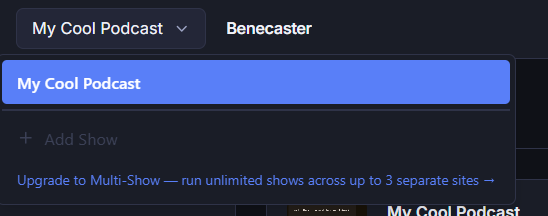
When you reach your plan’s show limit, the Add Show button is disabled and an upgrade prompt appears. To add another show, upgrade to Multi-Show (up to 3 shows) or Studio (unlimited shows) from your account at benecaster.com.
To reassign a license slot to a different show, remove the existing show from your account on benecaster.com. Removal takes effect immediately — the removed show loses access at that moment and you’ll receive a confirmation email. The freed slot is then available to assign to a new show.
My subscriber count dropped suddenly — will I be auto-downgraded?
No. Benecaster never automatically downgrades your plan based on subscriber count. Your plan only changes when you initiate it.
A sudden drop — more than 80% from your all-time high, or a count falling below 5 — sends you an alert: “We noticed your subscriber count dropped — is everything okay? This could indicate a technical issue with your membership plugin or feed setup.” Both rules only apply on a licence that has previously reported more than 10 paying subscribers, because below that number a real drop and a broken integration look the same. No plan action is taken, nothing is paused, and the email is sent once rather than repeated.
Downgrading yourself: You can move to a lower tier from My Account → Change your plan. What gates it is fitting inside the target plan for 30 continuous days — on every limit it sets, so your paying subscriber count and, where that plan caps them, your active shows and your total listener count including free-tier subscribers. The clock resets if any one of them stops fitting. Benecaster tells you when you’re eligible and the control only appears at that point, so if a drop was genuine and you want to move down because of it, expect to wait out the 30 days rather than downgrade the same week.
My site shows a ‘Reconnect to Benecaster’ notice — what do I do?
The “Reconnect to Benecaster” notice appears in your WordPress admin when your site’s connection to your Benecaster account has been interrupted. Reconnect promptly — this is not cosmetic. The connection is how Benecaster confirms your plan, so while it is broken your paid features stop working: subscription-gated content for that show is hidden from the front end, and your subscribers are affected, not just your admin screens.
To reconnect: click the Reconnect to Benecaster button in the notice, or go to Benecaster → Settings → Account and click Connect. You’ll be taken to benecaster.com to log in and confirm — the plugin re-establishes the connection automatically.
Your data is safe throughout, which is a separate thing from your features working. Nothing is deleted or reset by a disconnection: your subscribers, their feed tokens, your episodes and your settings all remain exactly as they were, and reconnecting restores full functionality immediately. What you lose is access to the paid features while disconnected — not the work behind them.
The notice is per-show: if you have multiple shows on the same WordPress installation, only the show whose connection was interrupted shows the notice. Other shows are unaffected.
If the notice keeps reappearing after reconnecting, contact support.
Why did I get two charges?
If you purchased a recurring add-on alongside your plan, you’ll see two separate charges — one for your plan subscription and one for your add-on subscription. They are billed on independent schedules.
This is by design. Recurring add-ons are annual-only, while your plan can be billed monthly or annually. Running them on separate subscriptions means a failed add-on renewal can’t affect your plan, and each can be managed independently.
One-time add-ons (like the Migration Wizard) are charged once at checkout on the same invoice as your plan. They don’t renew and won’t appear as a second ongoing charge.
Why are my add-on and plan renewal dates different?
Because they can’t share a billing cycle. Recurring add-ons are annual-only, while your plan can be billed monthly or annually — so on a monthly plan there is no single date the two could share, and putting them on one subscription would mean either billing your add-on twelve times a year or your plan once.
Keeping them separate has a second benefit worth knowing about: a failed add-on renewal can’t affect your plan, and each can be cancelled or changed without touching the other.
Even on an annual plan the dates rarely match exactly. The add-on subscription is created after your plan payment clears, so the two start moments apart and can drift further over time.
There is no way to force them to align — each runs on an independent subscription with its own billing clock. If you cancel and resubscribe, both clocks reset from that point.
Can I pay for my add-on with a different card?
No. Benecaster stores one payment method per account, and it applies to everything — your plan and all add-ons. You can update your card from your account, and the new card is used for all future charges on all subscriptions.
This is intentional: one card on file means one place to update, and no situation where a plan renewal succeeds while an add-on renewal fails on an unrelated card.
What happens if my add-on payment fails — do I lose my plan?
No. Your plan and your add-on subscriptions are independent. If an add-on renewal fails, only that add-on lapses — your plan continues normally.
A failed payment does not switch the add-on off. You’ll get a payment failure notice, and the add-on keeps working while the card is retried — so a card that expired over the weekend doesn’t take features off your site before you’ve had a chance to look at it.
Update your card from your account and the next retry goes through. The add-on only stops working if the retries run out and the subscription is cancelled — that is the point its features are switched off, not the first failed charge.
Contact support if you need an add-on reinstated after sorting out a billing issue.
Will my subscribers know something went wrong?
This is about what your subscribers see if your own Benecaster licence lapses — after a failed payment, say — and the grace period runs out. See Payment Failure and Recovery for that timeline.
They will see their private feed stop working, but nothing tells them why. Benecaster sends them nothing, and their podcast app can only report that the feed failed — it has no way to distinguish a billing problem on your side from a show that has simply stopped publishing. If you want them to understand what happened, you have to contact them directly.
Will subscribers lose access to old premium episodes?
Through their feed, yes, for as long as the cutoff lasts. Anything already downloaded to their device stays there. Everything returns when the license is restored.
Do I need to resend feed URLs after recovery?
Usually not. Token URLs are unchanged and start working again on their own. The exception is a subscriber whose app gave up and unsubscribed during the outage — they will need the URL again, and the longer the cutoff ran the more of them there will be.
Does my public feed go down too?
No — and this is one thing that never breaks. If your Benecaster licence lapses, your private subscriber feeds stop first (after a grace period) and then stay off until you resolve it. Your public feed — the ordinary, no-token RSS feed your show is listed under — keeps serving normally throughout, both during the grace period and after the cutoff.
The reason is deliberate: a lapsed licence drops your site to exactly the free WordPress.org version of Benecaster, and that version serves public feeds. You lose subscriber delivery, not your podcast. See Payment Failure and Recovery for the full timeline.
For Developers
Does Benecaster have hooks and filters?
Yes, throughout. Hooks and filters are a standard WordPress feature, and Benecaster was built to make robust use of them for maximum customization. Action hooks fire with every significant event so you can run your own code at any point in the plugin’s lifecycle. Filters wrap every significant output so you can alter it before it reaches the page or the feed. Data going into the RSS feed is filterable at the field level.
Premium hooks only register when a valid license is active. Free hooks are always available. Developers can extend and customize freely without modifying core.
A word of caution: hooks and filters are a developer feature. Incorrect usage can disrupt subscriber feed access, break the subscription flow, or cause data to be written incorrectly. If you’re not comfortable writing PHP, consult a developer before adding custom hook code to your site.
Full documentation for all available hooks and filters is in the developer documentation.
Can I build custom integrations?
Yes. Benecaster’s hooks and filters give you deep integration points throughout the plugin — subscription events, feed output, episode data, emails, analytics, and more. Action hooks fire on subscription activation, cancellation, tier change, and every other significant event, making it straightforward to connect Zapier, Make, or a custom integration from any plugin or mu-plugin. Filters let you alter output at any point without touching core code.
Custom integrations touch live subscriber data and the subscription lifecycle. A mistake in a hook callback can disrupt feed delivery, send incorrect emails, or corrupt subscriber records. If you’re not an experienced PHP developer, have a developer build and test any custom integration before deploying it on a live site.
Can I add support for a membership plugin that isn’t in the supported list?
Yes, but it’s a real development project. Benecaster’s bridge system is built around a documented BridgeInterface contract, and implementing one means writing a PHP class that translates your membership plugin’s subscription model into Benecaster’s — tier lookups, user status, and event callbacks for activation, cancellation, tier changes, renewals, and payment failure. You’ll also need to understand the target plugin’s own API well enough to hook into those events reliably.
Once implemented, your bridge registers via benecaster_boot and Benecaster’s core, token system, and subscription events all route through it automatically — no core modifications needed. The full interface reference and a working example are in the developer documentation.
Where does Benecaster store its data?
Your subscriber data lives entirely in your WordPress database — nothing about your subscribers goes anywhere else. Benecaster adds its own tables for tokens, episodes, analytics, and related data, and keeps settings and configuration in standard WordPress options. The feed cache uses the WordPress object cache, falling back to transients where no persistent cache is available.
Podcaster account data is split across two external systems. Benecaster’s license server (benecaster.com) stores your account details, license, and aggregate telemetry data if you’ve opted in — see What data does Benecaster send to the license server? for specifics. Stripe holds your payment method and billing history. Neither service ever receives subscriber emails, names, feed tokens, or any data about the people who subscribe to your podcast.
No proprietary format locks you in. Benecaster’s hooks and filters are intentionally comprehensive — most developer customizations can be done without touching the database directly, which is the safer approach. Direct table access bypasses the plugin’s internal logic and is prone to breakage as the schema evolves.
Does Benecaster work with page builders?
Yes. Benecaster works with any page builder.
The Blocks & Widgets Library add-on (free) provides Gutenberg blocks and Elementor widgets for all Benecaster front-end elements — episode player, subscribe CTA, RSS URL display, QR code, episode list, and more. Shortcode fallbacks are available for every element and work with any page builder or classic editor setup. See the Shortcodes Reference for the full list.
Can I override Benecaster’s templates?
Yes. Benecaster follows standard WordPress template override conventions. Copy any template from the plugin’s templates/ directory into a benecaster/ directory in your child theme and it will be used instead. Templates for episode archive, single episode, subscriber account, and feed components are all overrideable. Full developer documentation on the override path, available variables, and template parts is in the Template Overrides developer reference.
The file-copy override path is theme-specific — files in a custom plugin’s directory won’t be picked up. If you’re working from a plugin rather than a theme, use Benecaster’s action and filter hooks to modify template output. Most template sections have output filters and before/after action pairs. See the hook reference for available hooks.
Can I customize Benecaster for a client?
Yes, and the surface is wider than hooks alone. You can’t hold a license on a client’s behalf — see agency and multi-site licensing — but the license rule is about who owns the podcast, not about what you’re allowed to build. A companion plugin that shapes a client’s install is ordinary WordPress development, and it stays your work.
What you can change. Alongside the general hook and filter surface, Benecaster’s admin accepts extensions declared from PHP:
- Setup wizard steps —
benecaster_setup_wizard_stepspasses you the whole ordered step list, so you can add your own steps, drop ones a client doesn’t need, or reorder what’s left. - Settings pages and sections — add a full settings page to the show editor navigation, or a section inside an existing settings page.
- Dashboard cards — add your own card to the Benecaster dashboard.
- Editor tabs — add tabs to the episode editor and show editor sidebars, and sections to the subscriber detail panel.
Add-ons use these same filters. There is no private path that add-ons get and you don’t.
Two things worth knowing before you quote the work.
The admin is a React application, not a set of PHP admin screens. The filters above declare your extension — its slug, label, and position — but the thing that renders is a React component your plugin registers on the page. So admin UI work means shipping JavaScript as well as PHP. Everything that isn’t admin UI — feed output, subscriber lifecycle, emails, templates, integrations — is plain PHP hooks and needs no build step.
Benecaster is not white-label. The admin menu says Benecaster, the interface is Benecaster’s, and there is no branding hook or setting to change that. You can add to the admin and reshape the setup flow; you can’t make it look like your own product or the client’s. If a client’s requirement is that Benecaster be invisible, say so early rather than discovering it late.
Build alongside the plugin, not inside it. Everything above is reachable from outside the plugin — hooks, filters, shortcodes, template overrides, the admin extension points, and the public function surface. Modifying Benecaster’s own files is not supported: our Terms §6.1 condition support and warranty on an unmodified core, updates overwrite changed files anyway, and removing our branding or presenting the plugin as your own product is prohibited outright. If the extension surface does not reach something you need, tell us — we would rather add the hook than have you fork the file, and that is the only route where your work survives an update.
Where to start. The hook reference, shortcode reference, and recipes cover the full surface, and the recipes are working examples rather than snippets. If you’d rather have the work done than do it, we also take on custom development.
Referral Program
How Does the Credit Work?
When someone you referred becomes a paying member, we add a credit to your Benecaster account equal to 50% of their plan’s list price — minimum $10. That credit pays out gradually against your plan renewals — up to half of each renewal charge until it’s used up. If your credit is larger than half of one renewal, the rest carries forward automatically. You don’t need to do anything.
Credit applies to your core plan renewal only — not add-on renewals, one-time purchases, or Setup Service fees.
For example: you’re on Pro ($25/month). A friend you referred signs up for Pro. You earn $12.50 in credit — the full amount comes off your next renewal. Refer a Studio customer ($149/month) and you’d earn $74.50, which would reduce your Pro bill by up to $12.50 each month for about six months.
When Will I See My First Credit Applied?
On your next renewal after your referral becomes a paying member. We email you as soon as they sign up on a paid plan, so you know it is coming before you see it.
It is credit against your renewals, not a cash payout. Nothing is transferred to a bank account. The credit reduces what we charge you at renewal, which means you see it as a smaller invoice rather than as money arriving.
A large credit may take more than one cycle to use up. Referral credit applies at up to 50% of any single renewal, and whatever is left carries forward to the next one. So a $10 credit on a $9/month plan comes off as $4.50, then $4.50, then the last $1 — three renewals, not one. Credit does not expire while your subscription stays active.
Where Can I See My Referral Credit Balance?
Three places: your Benecaster account at benecaster.com/my-account/ under the Referral Program section; the Refer a Friend page in your plugin admin (the Gift icon in the top-level navigation, just after Memberships); and the plugin admin under Settings → Account. All three show the current balance along with the date your next renewal credit will be applied — even if the balance is $0.
You may see two credit figures rather than one. Referral credit is what you’ve earned by referring other podcasters. Refund credit is your own prepaid money returned to you — for example when a plan change starts covering something you were paying for separately. They’re shown separately because they behave differently: referral credit only applies to plan renewals and is capped at 50% of any one renewal, while refund credit has no restrictions.
Referral credit is always spent first, and that’s deliberately in your favor — see Does my credit expire?.
How Do I Get My Referral Code and Link?
Your referral code and link are in two places: your Benecaster account at benecaster.com/my-account/ under the Referral Program section, and in the Benecaster plugin admin under the Refer a Friend page (look for it in the top-level navigation). Copy the full link or just the raw code — either works.
What Can I Do with My Referral Code?
Share it however makes sense:
- Direct link — share your referral link and your friend goes straight to checkout with the discount pre-applied
- Newsletter or show notes — drop the link in your email list or episode description to reach your whole audience
- Direct message — send it to a specific podcaster you think would be a good fit
How Do I Send My Friend Directly to Checkout with the Discount Applied?
Your referral link does this automatically. When someone clicks benecaster.com/ref/[your-code], they’re taken to the checkout page with your referral code already entered. They choose their plan there, and the discount applies automatically when they complete their purchase. Nothing extra to set up.
What If My Friend Signs up for the Free Tier First?
No problem. Your referral is tracked when they create their account — as long as they enter your code during signup, it’s recorded and stays on their account indefinitely. When they upgrade to a paid plan — even a year later — your credit fires then.
Their discount isn’t lost either. When somebody signs up free with your code and upgrades later, Benecaster applies the 50% first-month discount to the plan they upgrade to, at the moment the paid subscription is created — the same discount they’d have received had they gone straight to a paid plan on day one. There’s nothing for either of you to re-enter.
Can I Refer More Than One Person?
Yes. There’s no cap on referrals. Every person who becomes a paying member earns you a separate credit, and they stack. Credits apply at up to 50% of your renewal charge per cycle — so you always pay at least half, but with enough referrals you can keep that half covered for a long stretch.
What Plan Does My Referral Need to Be on for Me to Earn Credit?
Any paid plan — Starter, Growth, Pro, Multi-Show, or Studio. Free-tier accounts don’t count until they upgrade.
The credit you earn is 50% of your referral’s plan price on their first invoice, with a $10 minimum. Their own referral discount doesn’t come out of your credit — a Pro monthly referral pays $12.50 at checkout after their 50% off, and you still earn the full $12.50 calculated against the $25 plan price.
Annual plans produce larger credits, because the base is the whole prepaid amount: a Pro annual referral ($249) earns you $124.50, versus $12.50 for a monthly Pro referral.
Add-ons bought in that same first checkout count toward the calculation — a referral buying Pro annual ($249) plus the Migration Wizard ($79) is a $328 purchase, earning you $164. Add-ons they buy later, in a separate checkout, don’t earn additional credit.
Does My Credit Expire?
As long as you have an active Benecaster subscription, your referral credit stays on your account until it’s fully used. If you cancel, any remaining referral balance is forfeited.
Will My Friend Know I Referred Them?
They’ll see the discount applied at checkout. We don’t send them any message naming who referred them.
You’ll receive an email when someone uses your code and becomes a paying customer — but we don’t share who it was. The notification tells you a referral converted and what credit you earned, nothing more.
Academic Program
Who qualifies for the Benecaster Academic Program?
The Benecaster Academic Program is open to current students, faculty, and staff at accredited educational institutions who are producing podcasts in an institutional context. That means the show is connected to your campus, department, coursework, or role — not a personal project that happens to be made by someone who works at a university.
Eligible shows include: student-run campus podcasts, department and research communications, faculty-produced content affiliated with the institution, and staff productions for institutional departments. Alumni with no current enrollment or employment are not eligible. Personal podcasts by educators unrelated to their university role are not eligible.
What counts as an ‘institutional podcast’?
An institutional podcast is one produced at or for your institution — a show that would appear on your institution’s website, be produced under the institution’s name or logo, or be recognized as an official or affiliated student activity.
That includes student clubs and campus radio shows, journalism and media school productions, research communication podcasts, department public outreach shows, and student union productions. If you’d describe the show as your university’s podcast (or your department’s podcast, or your student newspaper’s podcast), it qualifies.
A professor’s independent podcast on a topic outside their institutional role — one they produce on personal time with no institutional affiliation — does not qualify, even if they’re a faculty member.
What if I don’t have a .edu email address?
Many institutions outside the United States — and some within it — don’t issue .edu addresses. That’s fine — a .edu address isn’t required. Submit your application with a letterhead document and any additional materials that clearly establish your institutional affiliation.
Every application, .edu or not, goes through the same first step: we send a confirmation email to the address you provided, and you’ll need to click the link in that email to confirm it’s yours. After you verify:
- With a letterhead document included — we start reviewing it as soon as you click, and most applications are decided within a few minutes. If yours needs a closer look, a member of our team reviews it by hand, which can take a few business days.
- Without a letterhead document — your application moves to manual review. We aim to respond within a few days.
What should my letterhead document show?
The document needs to be on official institution letterhead — with the institution’s name, logo, or official header — and it should name the podcast and confirm its connection to the institution.
A generic department letterhead without any mention of the podcast isn’t sufficient. What we’re looking for is something that clearly shows the show is institutionally connected: a letter from a faculty advisor confirming a student show, a department head confirming an official departmental production, a student organization registration document, or similar.
It doesn’t need to be formal — a one-line confirmation on letterhead is fine. We just need to see that the institution knows the podcast exists and considers it affiliated.
How long does approval take?
Every application, .edu addresses included, goes through the same first step: we send a confirmation email to the address you provided, and you’ll need to click the link in that email to confirm it’s yours. After you verify:
- With a letterhead document included — we start reviewing it as soon as you click, and most applications are decided within a few minutes. If yours needs a closer look, a member of our team reviews it by hand, which can take a few business days.
- Without a letterhead document — your application moves to manual review. We aim to respond within a few days.
What plan should I apply for?
Apply for Growth. It’s free under the academic program and covers up to 250 paying subscribers and 2,500 total tokens — more than enough for most campus and community shows. If you’re not sure how large your audience will be, start here. You can apply for an upgrade later if you need it.
If you’re running a larger production or multiple shows that genuinely outgrow Growth, Pro, Multi-Show, and Studio are available at 20% off. Apply for the plan you need — if approved, you’ll receive a coupon code to use at checkout for the discounted price.
If you’re not sure which plan fits, the pricing page has the full subscriber count and feature breakdown.
How does the 20% discount work for plans above Growth?
When your application is approved for a paid plan, we email you a coupon code for 20% off the standard published price. The code can be redeemed once, by you, and is valid for 14 days from the date of your approval email.
The 20% is not a one-off — it keeps applying for as long as you’re in the program. Redeem the code once and every invoice after that is discounted too, at the same 20%. It is the code that is single-use, not the discount.
Starting fresh on a paid plan: Go to the pricing page and click through to checkout for the plan you were approved for. Apply the coupon code at checkout and use the same email address you applied with — the discount won’t link to your academic account otherwise. Your license is provisioned automatically at the discounted price.
Upgrading from a free academic Growth plan: Email support@benecaster.com and ask for an upgrade to the plan you need. We’ll issue you a coupon code for 20% off. Buying with it upgrades your existing account in place — your sites stay connected and your renewal date doesn’t change.
Upgrading from a paid academic plan (Starter, Pro, Multi-Show): Go to your account dashboard, navigate to your license and plan, and click Upgrade — no coupon needed. Your 20% academic discount carries over to the new plan automatically.
Your renewals stay discounted. There is no new coupon to request each year and nothing to re-apply at renewal time — the discount stays on the subscription. What does continue is the programme’s own annual reverification: the discount lasts for as long as you remain eligible, so keeping your academic status current is what keeps it. See How does annual renewal work?.
If your coupon expires before you use it, email us and we’ll issue a new one.
How does annual renewal work?
Academic licenses are reviewed annually. About 30 days before your one-year anniversary, we’ll email you asking you to confirm that your institutional affiliation is still active — a single click is all that’s needed.
If your institutional email address has changed or been deactivated since you applied — common after graduation — email us at support@benecaster.com before your renewal date so we can update your contact information. The renewal reminder goes to the address on your original application.
We don’t auto-revoke licenses if you don’t respond immediately, but ongoing access does require continued affiliation. If you graduate, leave the institution, or the podcast moves outside an institutional context, the right thing to do is let us know — you can transition to a paid plan at the standard rate.
Benecaster also reserves the right to request re-verification at any time. Misrepresentation of eligibility results in immediate license revocation.
Can I use Benecaster while my application is being reviewed?
Not quite — access starts once your application is approved, not when you submit. First, confirm your email by clicking the link we send you (every application needs this, .edu addresses included). From there, if you included a valid letterhead document, review is automated and usually quick — most clear within minutes, though a small number need a closer look from our team and can take a few business days. Your Growth plan is active as soon as it’s approved — no card required, and nothing further to click. If you’re new to Benecaster, a second email arrives with your approval so you can set your Benecaster password before connecting your site.
If you want to get set up in the meantime, the Launch plan is available for free, with no application to fill in. It covers up to 10 paying subscribers and costs nothing — it asks for a card on file, but nothing is charged to it. Signing up for Launch first doesn’t cost you anything if your academic application is later approved: your existing Launch plan becomes your academic Growth plan in place, on the same account, with your connected sites and subscribers exactly as they were. There’s no new account to set up and nothing to migrate.
If you didn’t include a letterhead document, review is manual and takes a few days.
Does the academic discount apply to add-ons?
The Academic Program covers the core plan only — the 20% discount applies to Starter, Pro, Multi-Show, or Studio (the Growth plan is free outright). Individual add-ons are not discounted.
Add-ons are separately available at their standard prices to any Benecaster account, including academic ones. If your institution needs the full add-on stack, the All Add-ons Bundle ($549/year) or Studio tier (which includes all podcaster add-ons) are the most cost-effective paths — with Studio at 20% off for qualifying institutions.
What happens if our podcast grows into a commercial production?
Great problem to have. If your show moves beyond an institutional context — graduates into a full commercial production, starts generating sponsorship revenue as an independent show, or otherwise stops being an institutional podcast — the right move is to transition to a paid plan at the standard rate.
Email us and we’ll walk you through the transition. Your existing license, subscribers, and data carry over — it’s just a billing change. There’s no migration required.
Can multiple people at the same institution each apply?
Yes, for different shows. Each application is for a specific podcast — if your institution has three separate podcasts produced by different teams, each team can apply individually. One license per show, each on its own academic plan.
If one person or team is producing multiple shows under a single Benecaster account, apply for the Multi-Show plan rather than applying separately for each show.
What if my email address has changed since I applied?
Email us at support@benecaster.com with “Academic Program” in the subject line. We’ll update the address on your application so your annual renewal reminder and any other program communications reach you at the right address.
If your institutional email has been deactivated — common after graduation — it’s worth getting this updated before your renewal date. The reminder is sent to the address on your original application, so if that address no longer works, you won’t receive it.
I’m already a Benecaster customer. Can I still apply?
Yes. Being a current customer never disqualifies you — apply with the same email address your account uses.
If you’re on the free Launch plan, approval for Growth moves your existing Launch plan to academic Growth in place: same account, same connected sites, nothing to reinstall or reconnect. If you’re already on a paid plan and apply for a higher tier, approval sends you the usual 20% discount code to use at your next renewal.
The one case that’s turned away as a duplicate is holding an active plan other than Launch — Growth, Starter, Pro, Multi-Show, or Studio — no matter which plan the new application is for. Launch is the only existing plan that doesn’t count against you, because it’s exactly what the program is designed to move you off of.