Shows Overview
A show is the top-level container in Benecaster. It holds your episodes, has its own RSS feed, has its own subscriber base, and has its own tier configuration. Every episode belongs to exactly one show.
When someone subscribes to your podcast, they get access to one show’s feed. When you configure tier availability on an episode, you’re configuring it for that show’s tiers. The show is the unit that everything else is organized around.
The Show Switcher
The show switcher sits in the Benecaster top bar, always visible. Selecting a show from the dropdown scopes the entire admin context — the episode list, subscriber counts, and analytics all update to reflect that show’s data.
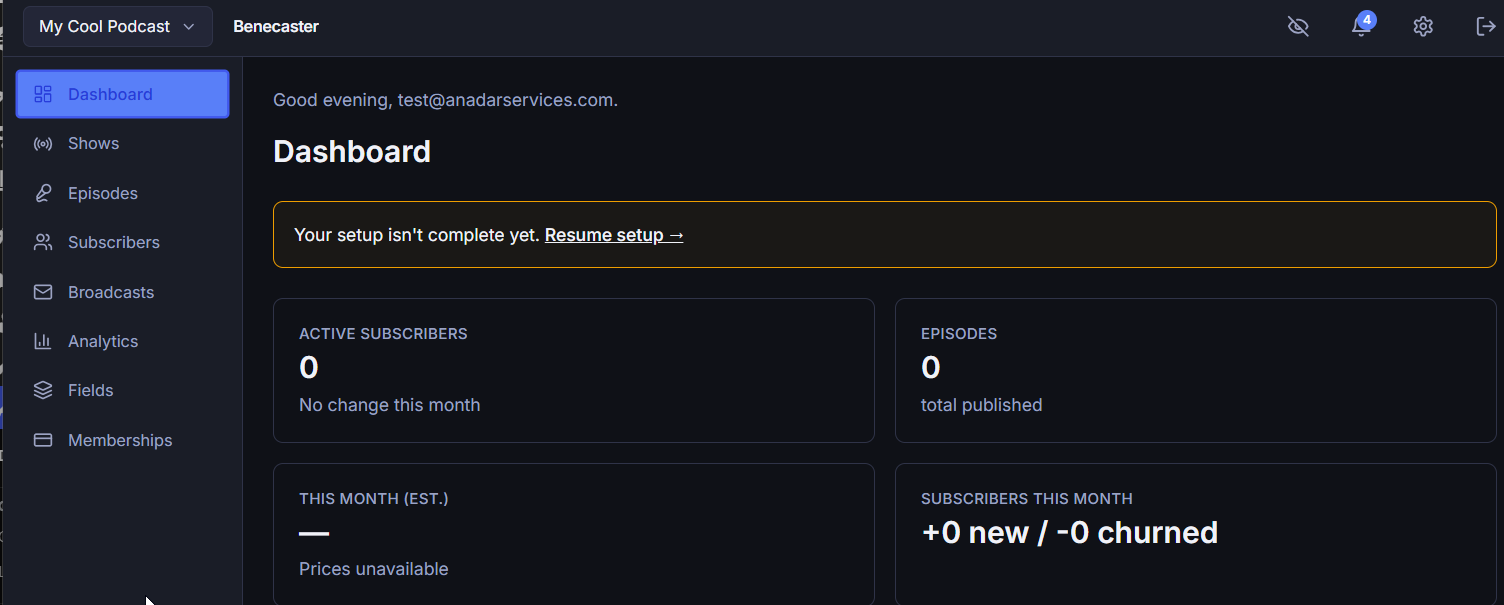
An “All Shows” option is available for cross-show analytics views, but most screens — episodes, subscribers, settings — apply to a single show at a time.
Show Identity
Each show has its own identity fields: name, artwork, description, and feed slug. These become the channel-level data in your RSS feed — they’re what appears in Apple Podcasts, Spotify, and other podcast apps when someone views your show’s listing rather than a specific episode.
- Name — The channel title in podcast apps and RSS
- Artwork — Square image used in podcast directories; minimum 1400×1400px per Apple Podcasts requirements
- Description — Your show description for podcast directories
- Feed slug — The URL path segment for this show’s RSS feeds; used in every subscriber’s personal feed URL
See Show Settings for the full list of show-level fields.
One Show Vs. Multiple Shows
Most Benecaster sites run a single show. If you have one podcast, you’ll work in that show’s context all the time and won’t need to use the show switcher.
Multi-show capability — hosting more than one podcast under the same Benecaster installation — is available on Multi-Show and Studio plans. Each show gets its own feeds, subscribers, and tier configuration. See Running Multiple Shows.
Creating a Show
On first activation, the Setup Wizard guides you through creating your first show. If you need to create additional shows, go to Benecaster → Shows → Add New. See Creating a Show.
See Also
Need this built rather than just documented? See our services →